How to create a survey with AI (and review it before you publish)
The slow part of a survey is rarely typing the questions. It is deciding which ones you need and which question type fits each one. SurvIQ's AI handles that first draft: you say what you want to learn and who will answer, and you get back a survey ready to edit.
1. Describe the survey
On the dashboard, tap "New survey" and choose "Create with AI". Describe what you want to measure in the same detail you would give a colleague: who answers, what decisions you will make with the results, and anything that must be there (a recommendation question, a list of locations, an email field).
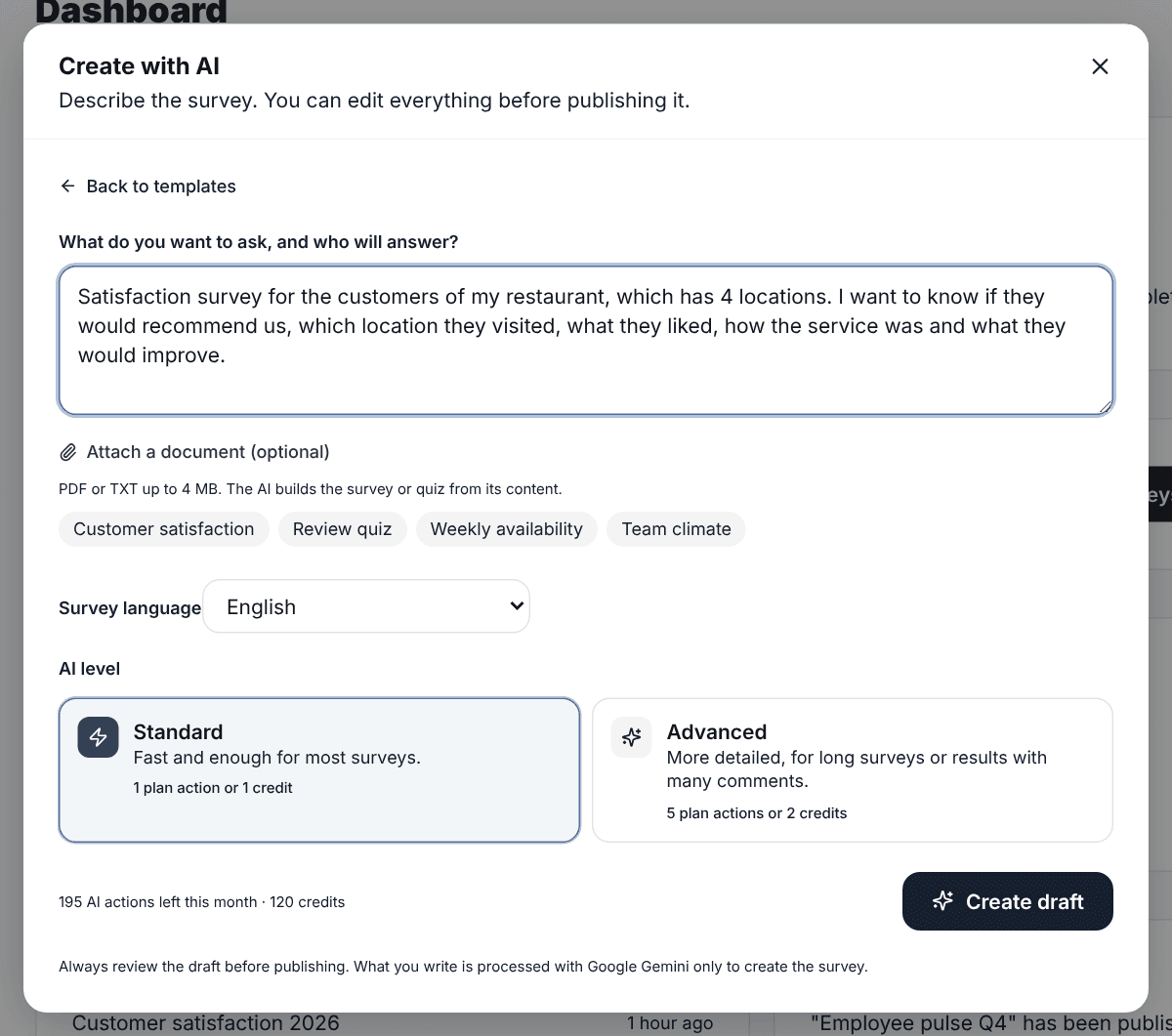
- Language: you can write in English and ask for the survey in Spanish, Portuguese, French, German or Italian.
- AI level: Standard is enough for most surveys; Advanced adds detail for long ones.
- If you are not sure where to start, the examples under the text box fill in a description you can adjust.
2. Review and adjust the draft
SurvIQ opens the draft straight in the editor. Each question comes with the right type: NPS for the recommendation, single choice for the location, multiple choice for what they liked, a rating for the service and open text for suggestions. From there you change wording, options, order or conditional logic as with any survey.
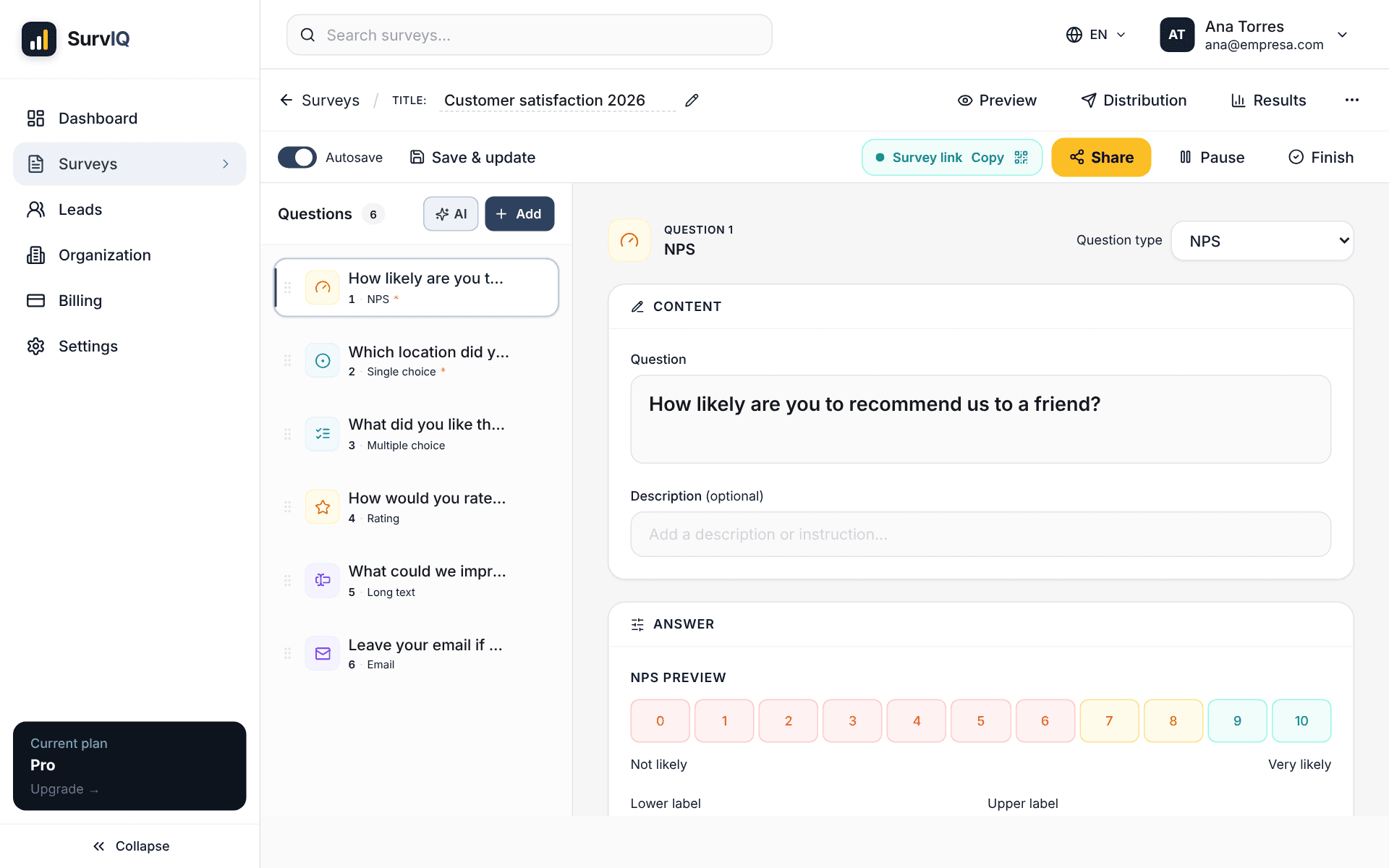
If something is missing later, the "AI" button in the question panel adds new questions at the end without touching the ones you have.
3. Ask for a review before publishing
Even when you write it yourself, a survey almost always has something to improve: a question that mixes two topics, a missing option, a word that tilts the answer. In the editor's "⋯" menu, "Review with AI" reads the survey as it is and returns a list of issues sorted by importance.
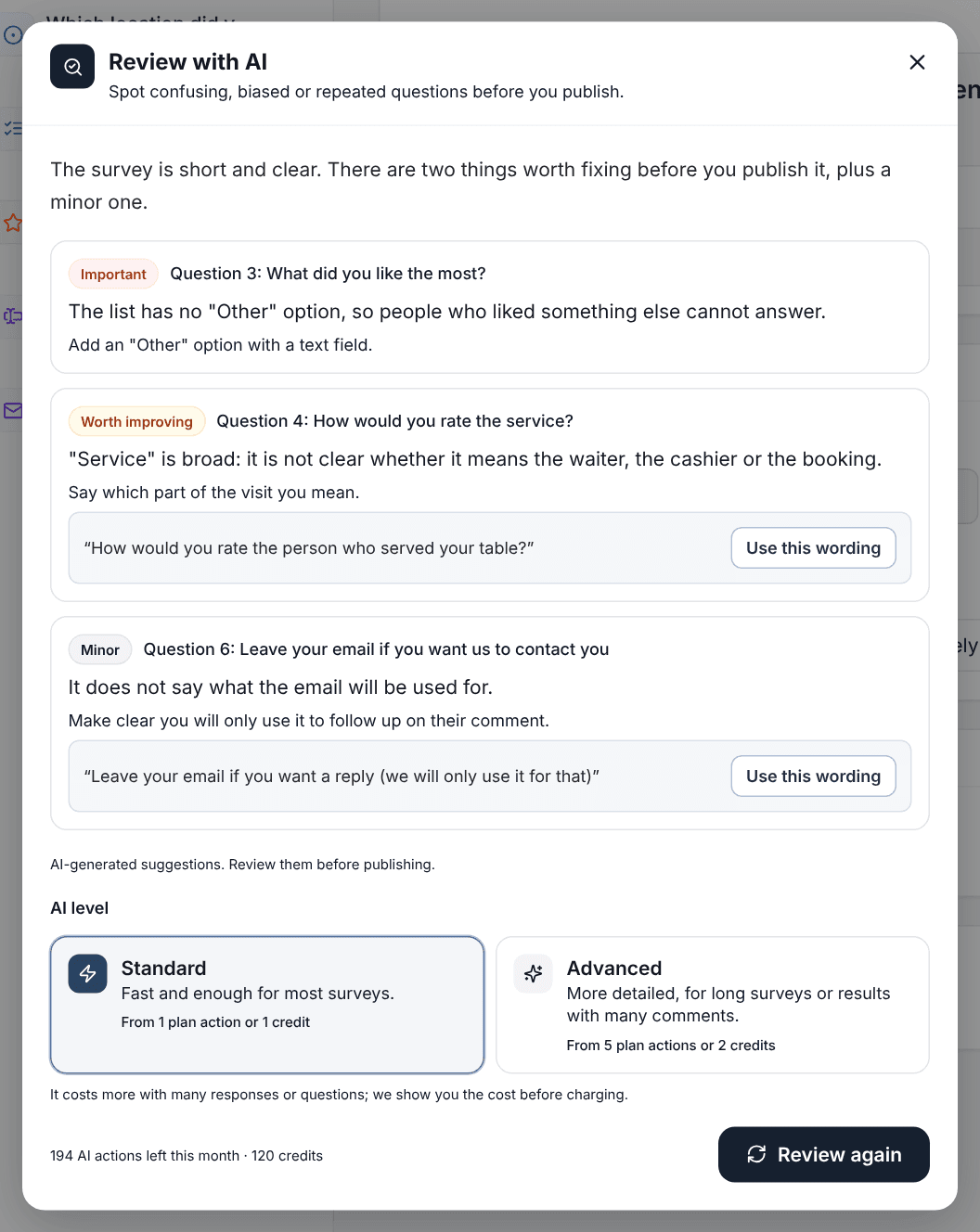
- Important: things that stop people from answering well, like a list without an "Other" option.
- To improve: ambiguous or overly broad questions.
- Minor: small fixes, like saying what you will use personal data for.
When the fix is new wording, "Use this wording" applies it in one click. You decide what to accept: the AI never changes anything on its own.
What it costs
Every plan includes AI actions each month, including the free one. Creating or reviewing a survey at the Standard level uses one action. When the month's actions run out, you can keep going with credits. What you write is processed with Google's paid Gemini API, which does not use that data to train its models.
One last tip: the AI saves you the draft, not the judgment. Read the whole survey as if you were the one answering before you share the link.