Ask your results: AI survey analysis in plain language
Per-question charts answer the general picture: how many chose each option, what the average is. The questions that matter usually combine two things: how one group answers compared with another, or what people who gave a low score say. That normally means building filters or exporting to a spreadsheet. In SurvIQ you can just ask.
Where to find it
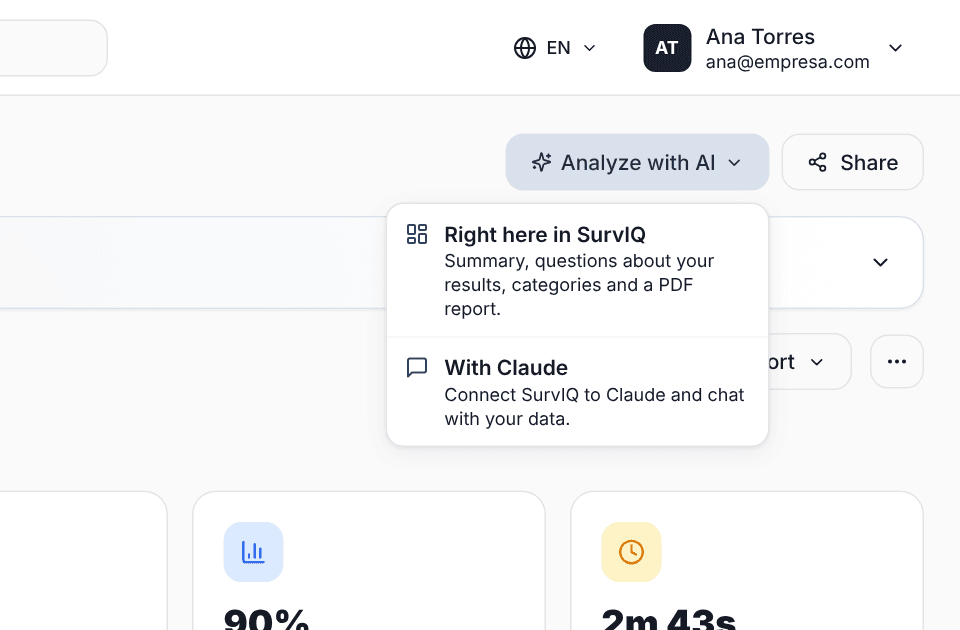
In Results, tap "Analyze with AI" and choose "Right here in SurvIQ". The AI panel opens; go to the "Ask" tab. The other option, "With Claude", is for people who prefer to connect SurvIQ to Claude and talk to their data there.
How it answers
Write the question as you would to an analyst. The AI reads the survey's responses (closed answers and comments), does the math and answers what you asked first, then the numbers behind it.
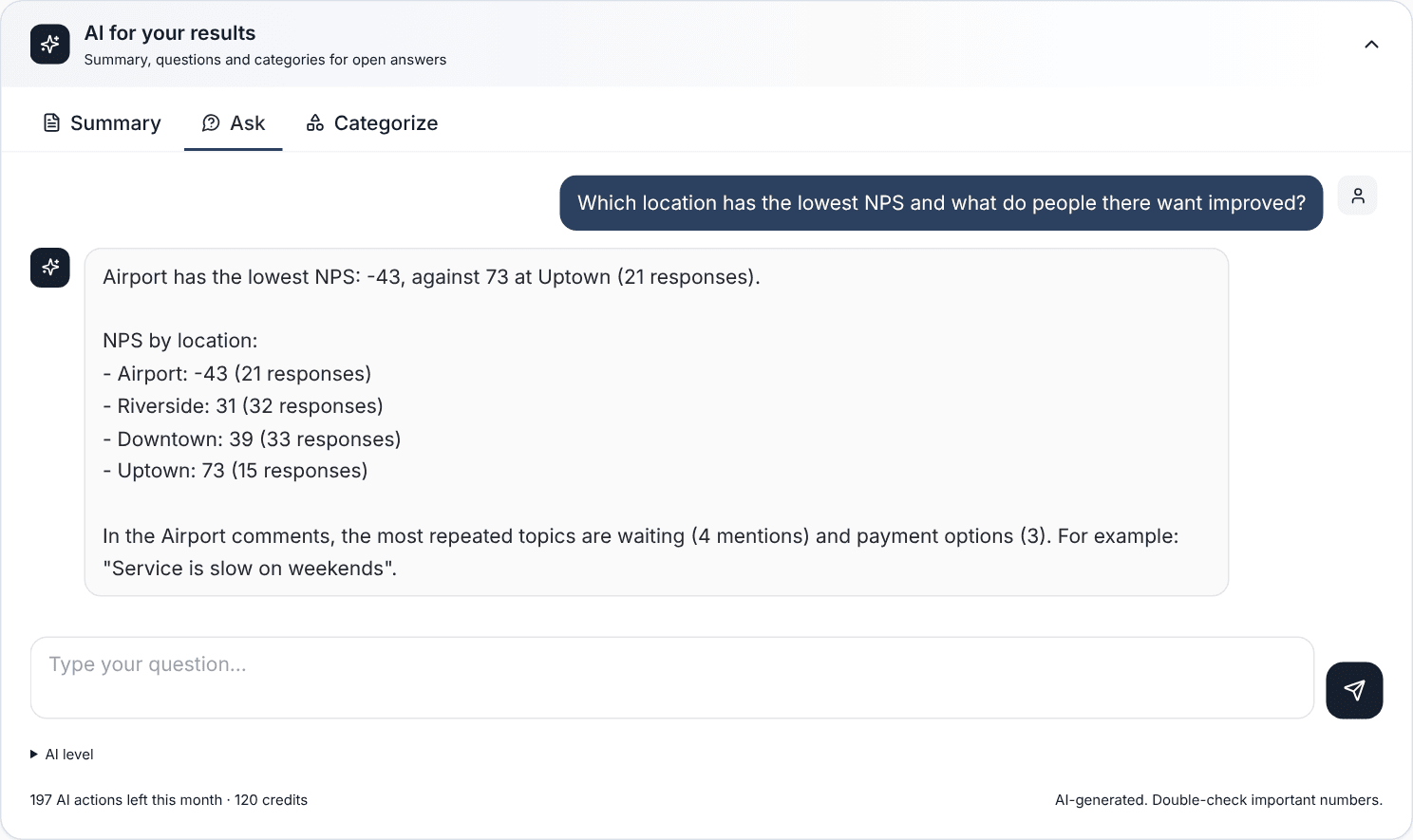
In the example, the answer compares the NPS of the four locations, points out the lowest one and counts which topics come up in that location's comments, with a verbatim quote. You can keep asking in the same conversation: "and on weekends?", "what do promoters at that location say?".
Questions that work well
- "What do people who gave the lowest score dislike the most?"
- "Compare satisfaction between new and returning customers."
- "Which three things should I fix first, according to the comments?"
- "How many flagged price as a problem, and what average score did they give?"
If the survey does not have the data to answer (say you ask about age and never asked for it), the AI says so instead of making up an answer, and suggests what question to add next time.
Before you decide
Double-check important numbers in the charts or in the individual responses view before a big decision, and be wary of conclusions from very small groups: a location with 8 responses can shift a lot with 3 more.
Asking uses two AI actions at the Standard level. Very large surveys are charged in blocks, and SurvIQ shows you the cost before charging.