How to share survey results so each manager sees only their team
The satisfaction or engagement survey is done, and then comes the part nobody plans for: every manager wants to see how their team did. The Downtown manager wants Downtown, the sales lead wants sales, and the client who ordered the survey wants everything, but without the internal comments.
The usual fix is to filter by hand, export one Excel file per department and email it. It works the first time. Then every file is out of date with the next response, someone forwards the full file to the wrong person, and nobody knows which version is the right one.
What a good way to share results needs
- One place with up-to-date data, not one file per person.
- Each person sees only their part, and can't remove that filter.
- Sensitive questions can be hidden, like open comments or a salary question.
- Nobody can change the survey or delete responses.
- You can remove someone's access at any time and see who opened it.
Dashboard tools like Power BI solve this with "row-level security", but you have to build the data model, keep it connected to the survey and pay a license for everyone who looks. For survey results that is usually too much.
How to do it in SurvIQ
In the survey results, Share has two tabs. Link is for a group that sees the same thing. People is for inviting each person by email and deciding what they see.
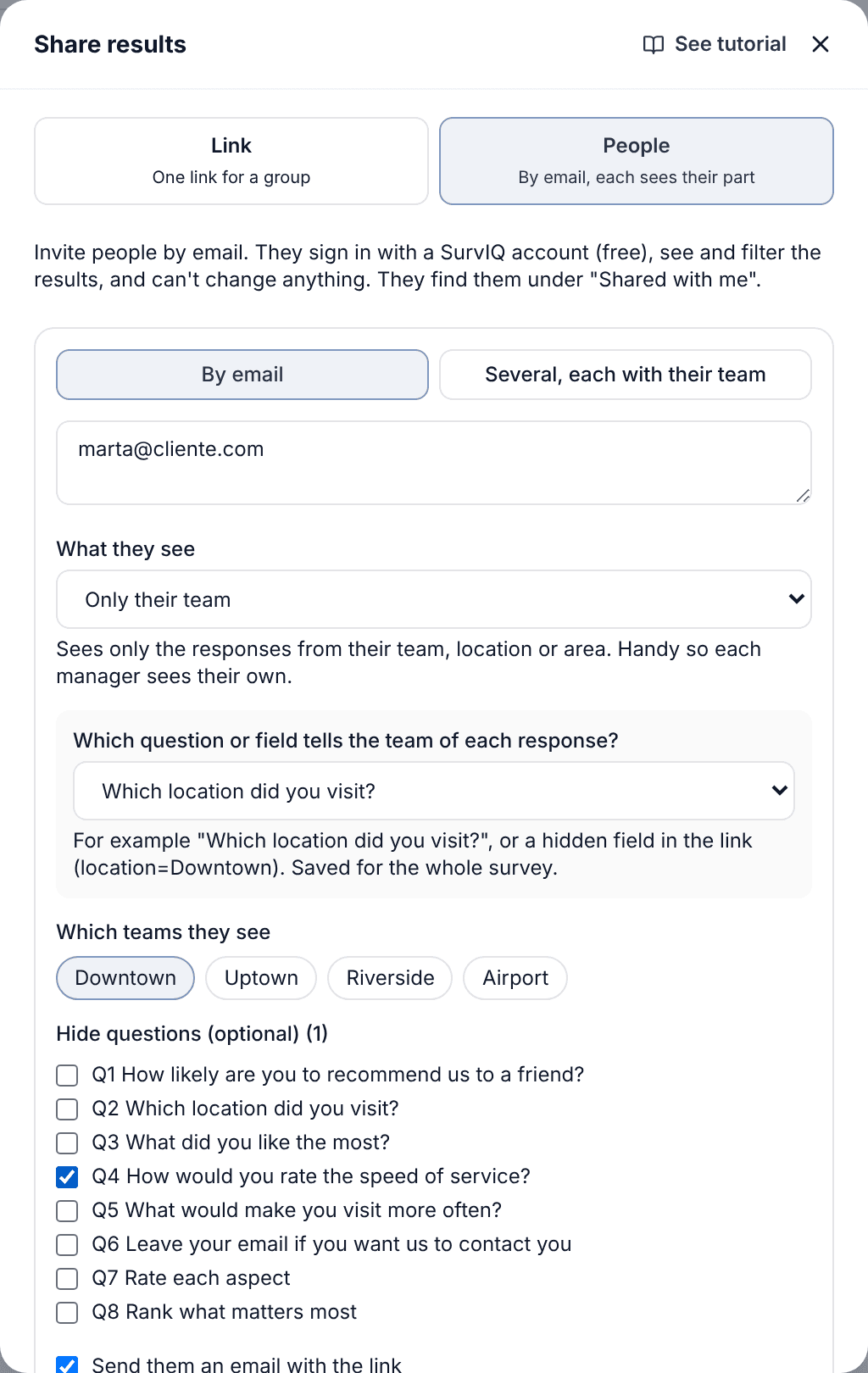
For each person you pick one of four options:
- All responses: for a partner, a director or the client who ordered the survey.
- Only a saved segment: for example "New customers" or "Night shift".
- Only their team: each manager sees their location, department or store.
- Only responses with their email: each manager shares their own link and sees only what came through it.
For "Only their team", SurvIQ needs to know which team each response belongs to. It can come from a survey question, like "Which location did you visit?", or from a hidden field in the link, like location=Downtown, if each location has its own QR code. You choose it once for the whole survey.
When there are many managers
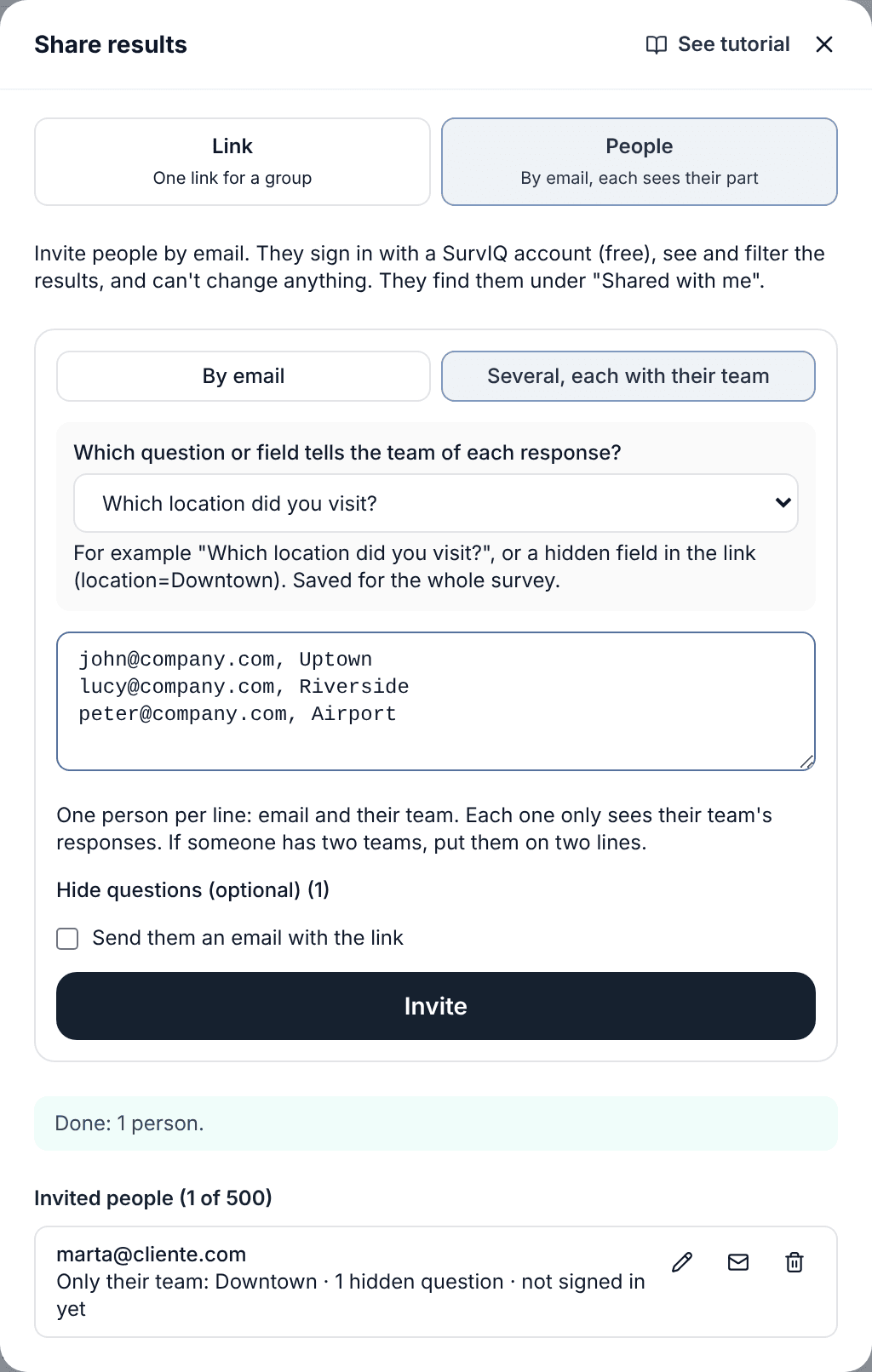
If you have 30 stores you won't invite each manager separately. In "Several, each with their team" you paste a list with each person's email and team, one per line. If you misspelled a location, SurvIQ tells you which one it couldn't find and adds everyone else.
What each manager sees
Each person gets an email with a button to see the results. They sign in with a free SurvIQ account, find the survey under "Shared with me" and see a note at the top with what they get. They can filter, compare and download their data, but they can't edit anything or remove their team filter.
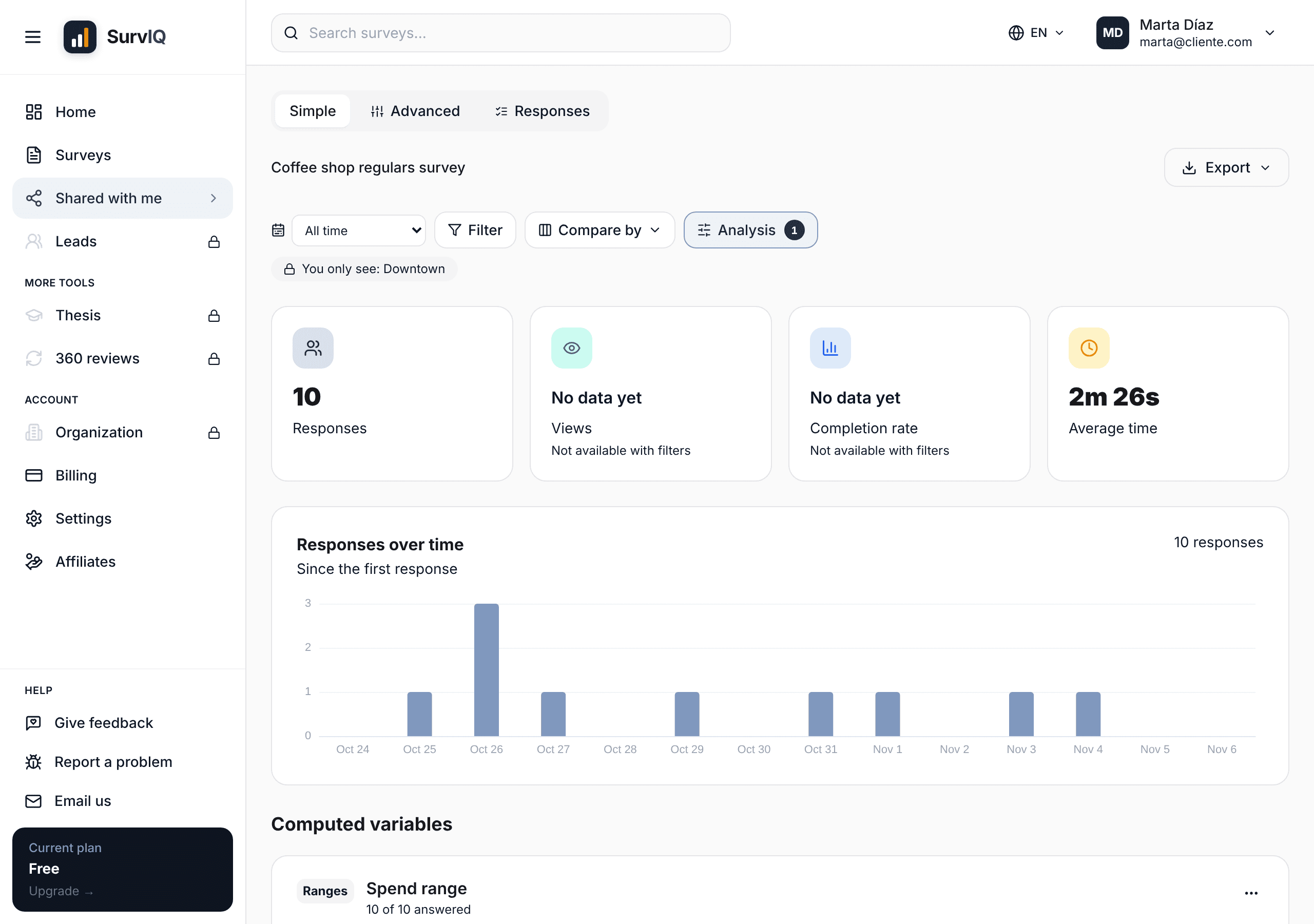
Since everyone looks at the same dashboard, every new response shows up for everyone right away. Nothing to export or send again.
Protecting confidentiality
In engagement or performance surveys, sharing by team needs some care:
- Don't share a team with very few responses. With three people, a manager can guess who said what. A common rule is not to show groups with fewer than 5 responses.
- Hide open comments from managers if you promised confidentiality. Hidden questions aren't in their downloads either.
- Keep the full view only for whoever analyzes the survey, for example HR.
- When someone leaves the role, remove them from the list: they lose access right away.
Step by step, with every option for the link and for invited people:
See the full Share results tutorial