AI surveys
AI writes the first draft and reads the answers for you
Tell it what you want to learn or upload the questionnaire you already have. When responses arrive, it summarizes what matters and groups the comments. You review and decide.
1. Describe what you need and get a survey
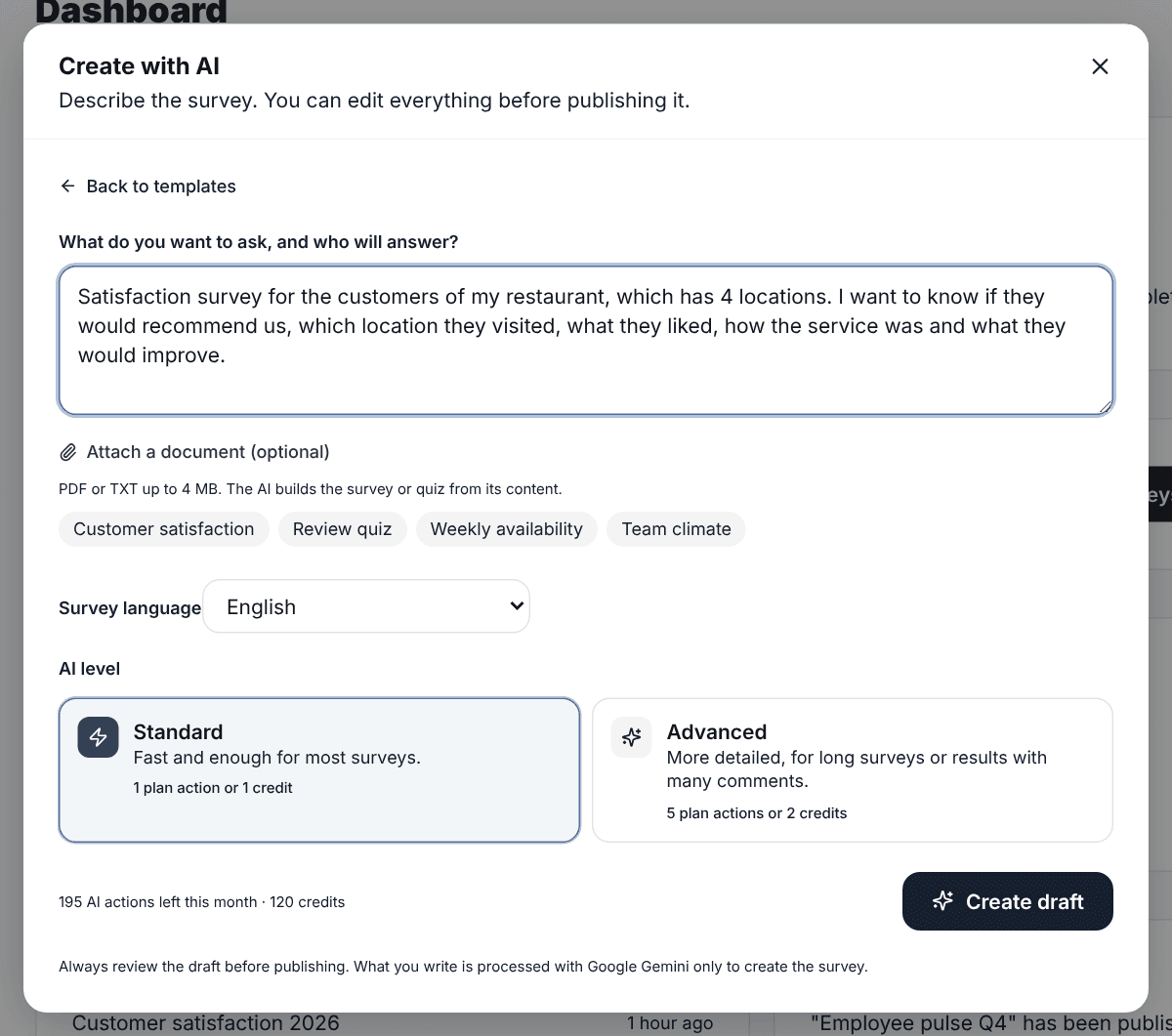
In "New survey", choose "Create with AI" and describe what you want to measure and who will answer. The AI picks each question type (NPS, single choice, rating, open text) and opens it in the editor.
- If something is missing later, "AI" in the question panel adds questions without touching the ones you have.
- Long surveys are split into pages by topic.
2. Or upload it from a PDF, Word or Excel file
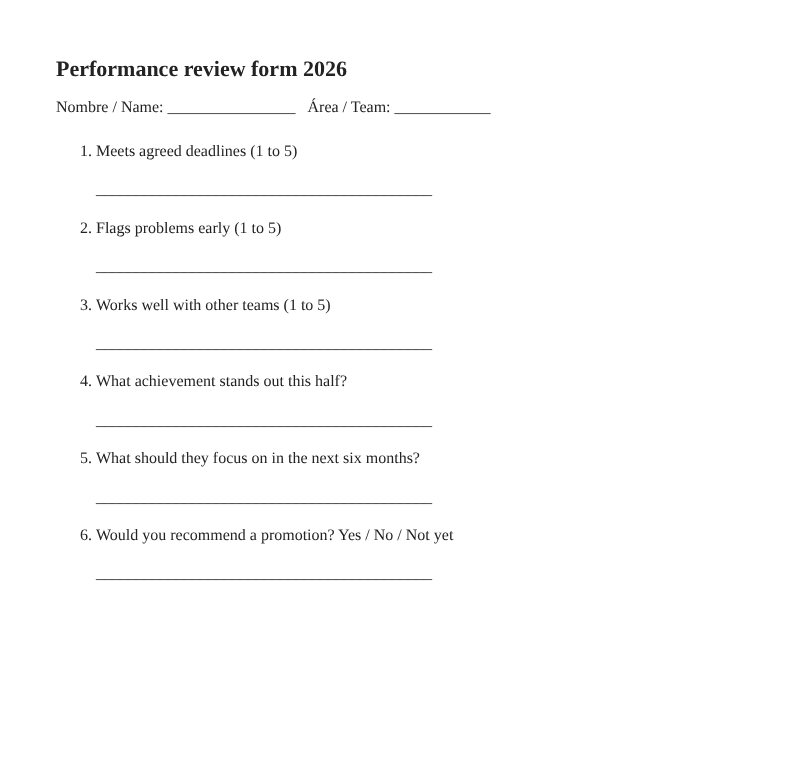
"From a file" reads the document and suggests a survey, or imports it as is if your questionnaire is already done. Use it to move the form you print today online.
- Accepts PDF, Word, Excel, CSV and text.
- Before charging, it tells you how much it will read and what it costs.
3. Ask it to review your survey
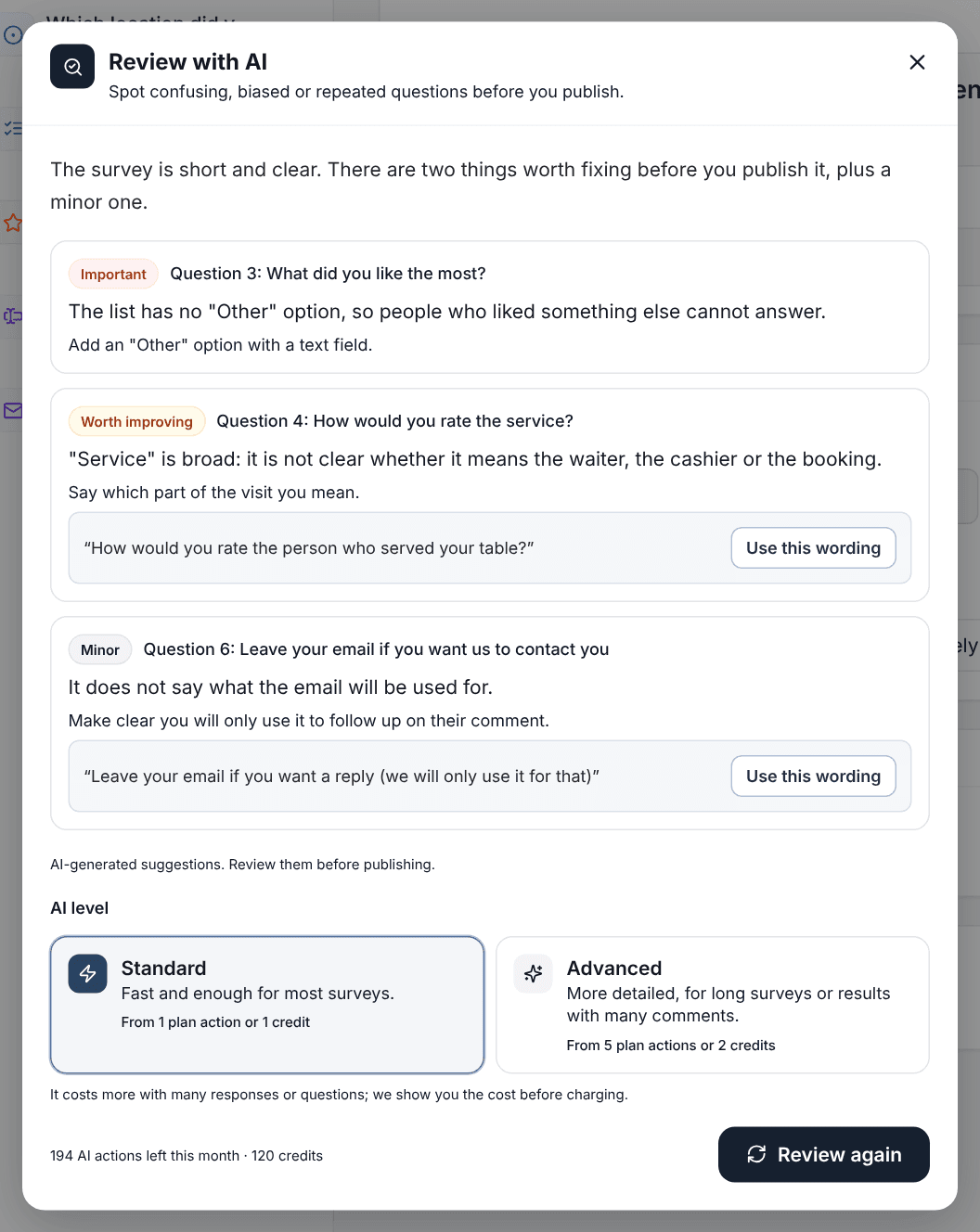
"Review with AI" reads the survey the way a respondent would and flags questions that mix two topics, missing options or words that tilt the answer.
- "Use this wording" applies the change in one click.
- The AI never changes anything on its own.
4. A summary of the results
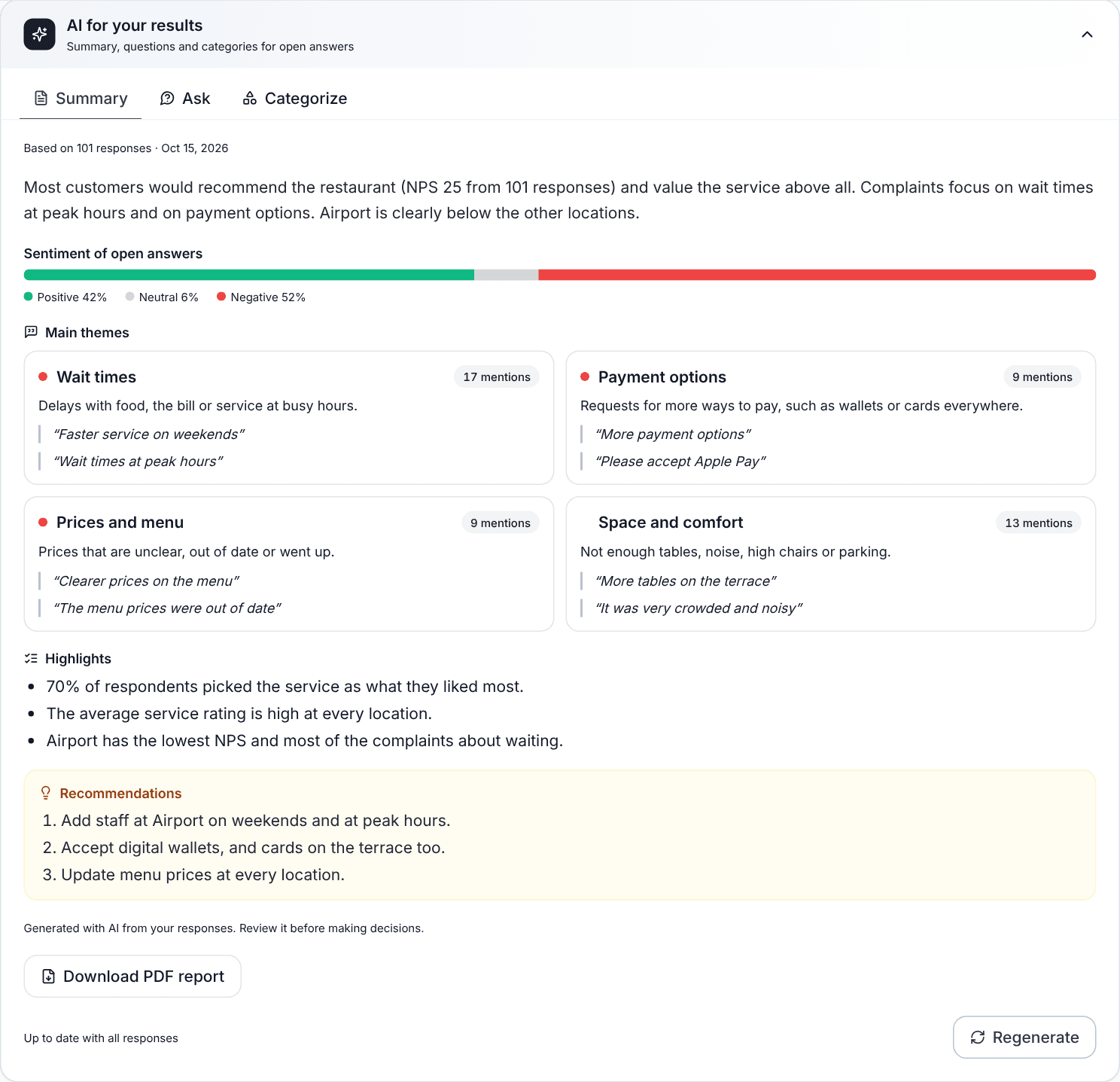
In Results, the summary looks at closed and open questions and gives you the main takeaway, the most repeated themes with verbatim quotes and what to do next.
- Quotes come word for word from the answers: SurvIQ drops any sentence that isn’t in your data.
- Download a PDF report with the summary and charts at no extra cost.
5. Group hundreds of comments into themes
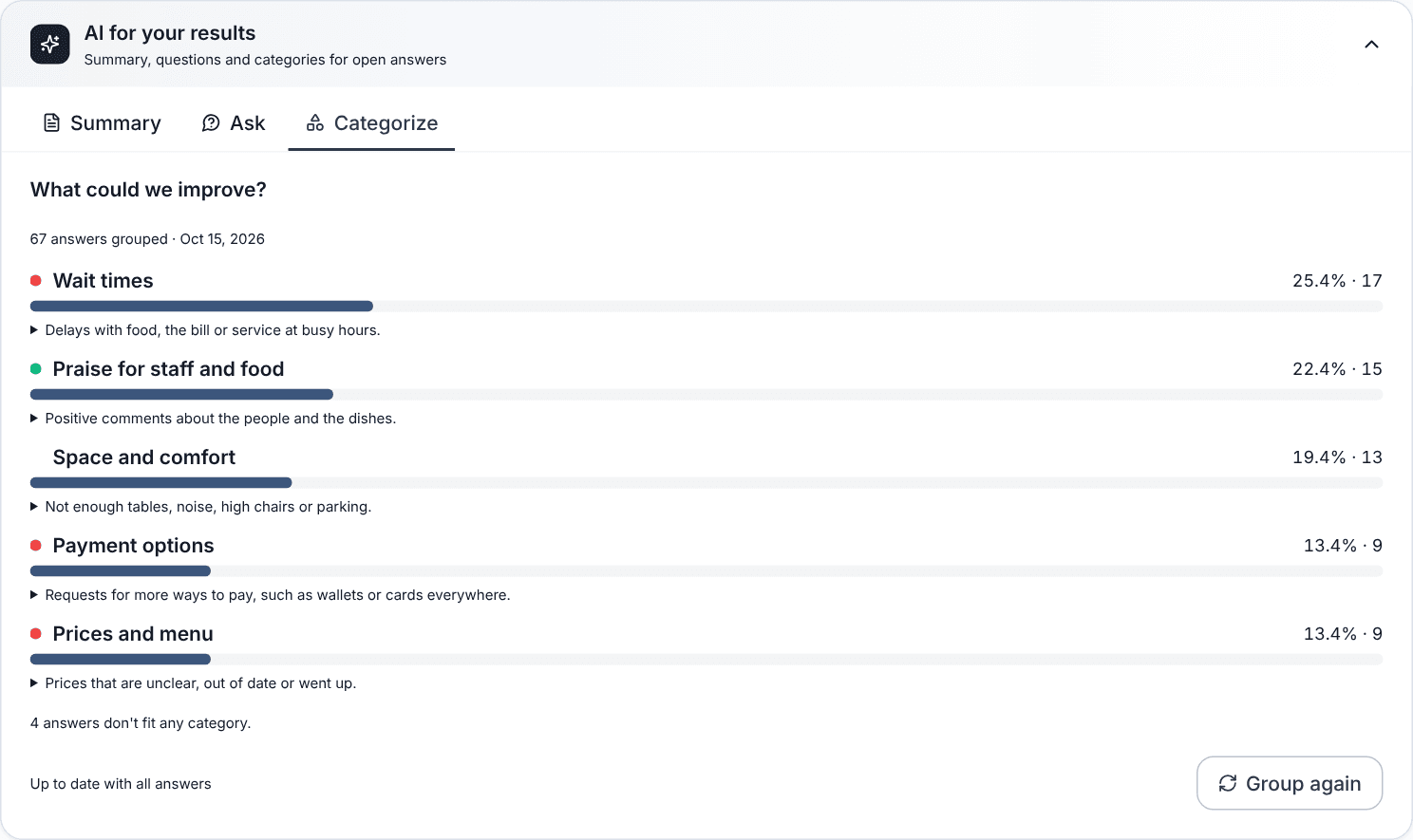
"Categorize" takes an open question, proposes 3 to 8 categories and counts how many comments fall in each, with examples.
- It reads every response, not a sample.
6. Ask your results a question
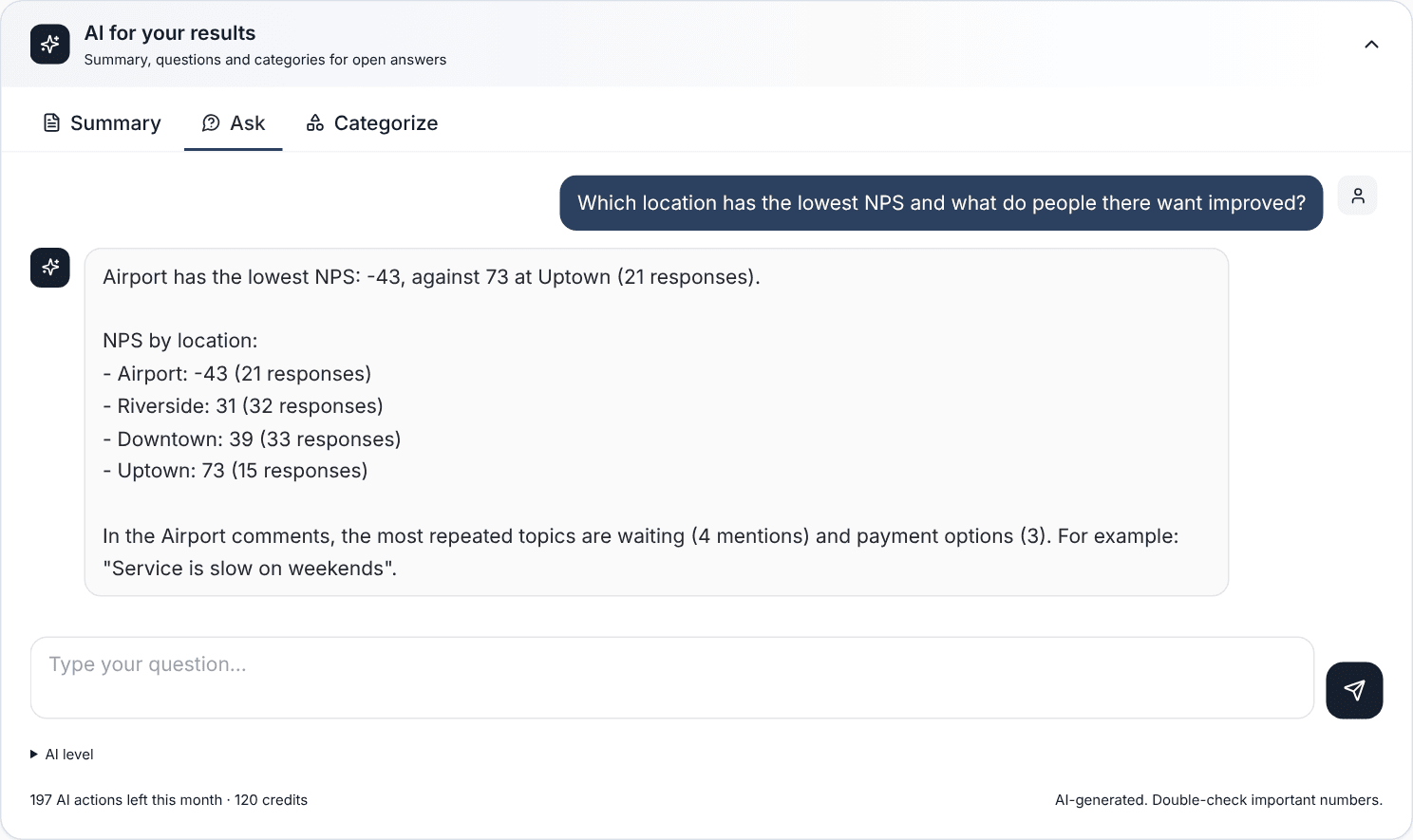
Write a question as you would ask an analyst, for example which location is least satisfied and why. It answers with the numbers and quotes from the comments.
- You can keep asking in the same conversation.
What people use it for
Customer satisfaction
Build the survey in a minute and understand what customers ask for without reading every comment.
Employee engagement
Group team comments by theme and see which ones come up most.
Exams and quizzes
Upload your lesson and the AI suggests questions with the correct answer marked.
Paper forms
Move the sign-up sheet or questionnaire you print today online.
AI uses included every month
Free
5
AI uses / month
Basic
50
AI uses / month
Pro
200
AI uses / month
Business
600
AI uses / month
Standard level (fast)
Every plan, including Free
Advanced level (reasons more)
From Basic
Translate the survey into another language
From Pro
When the month’s uses run out
Keep going with credits
Every action shows its cost before you use it. The per-action detail is on the AI pricing page.
Guides
Frequently asked questions
- Is it free?
- The Free plan includes AI uses every month at the Standard level. When they run out, you can keep going with credits or move to a plan with more uses.
- Does the AI publish anything without me seeing it?
- No. Everything it suggests stays as a draft or a suggestion, and you decide what to use.
- Is my data used to train the AI?
- No. We use Google Gemini’s paid service, which doesn’t use your data for training, and we never send your respondents’ emails or phone numbers.
- Does it make up data in summaries?
- Numbers come from your responses and quotes are checked against the data: if a sentence doesn’t appear, it’s dropped. It’s still worth reviewing the conclusions before sharing them.
- Which languages does it work in?
- The survey comes out in its own language (English, Spanish, Portuguese, French, German or Italian) even if you write to it in another one.
Try the AI on your next survey
Create a free account and use this month’s AI uses to build your first survey.
Create a free account