Tablet survey: how to measure satisfaction on site with kiosk mode
The best feedback from a customer is the one they give right after paying or being served. An hour later they are gone, and the survey email arrives when they are thinking about something else. That is why many stores, clinics and front desks set up a tablet with the survey in plain sight.
The problem with a regular link on a tablet is that, when the first customer finishes, the screen stays on "Thank you!". Someone on the team has to open the survey again before the next person. And if someone leaves halfway, the next customer sees the previous answers.
Kiosk mode fixes both.
- 1
Answer
Customer 1
Taps the answers on the tablet and sends.
- 2
Thank you
A few seconds
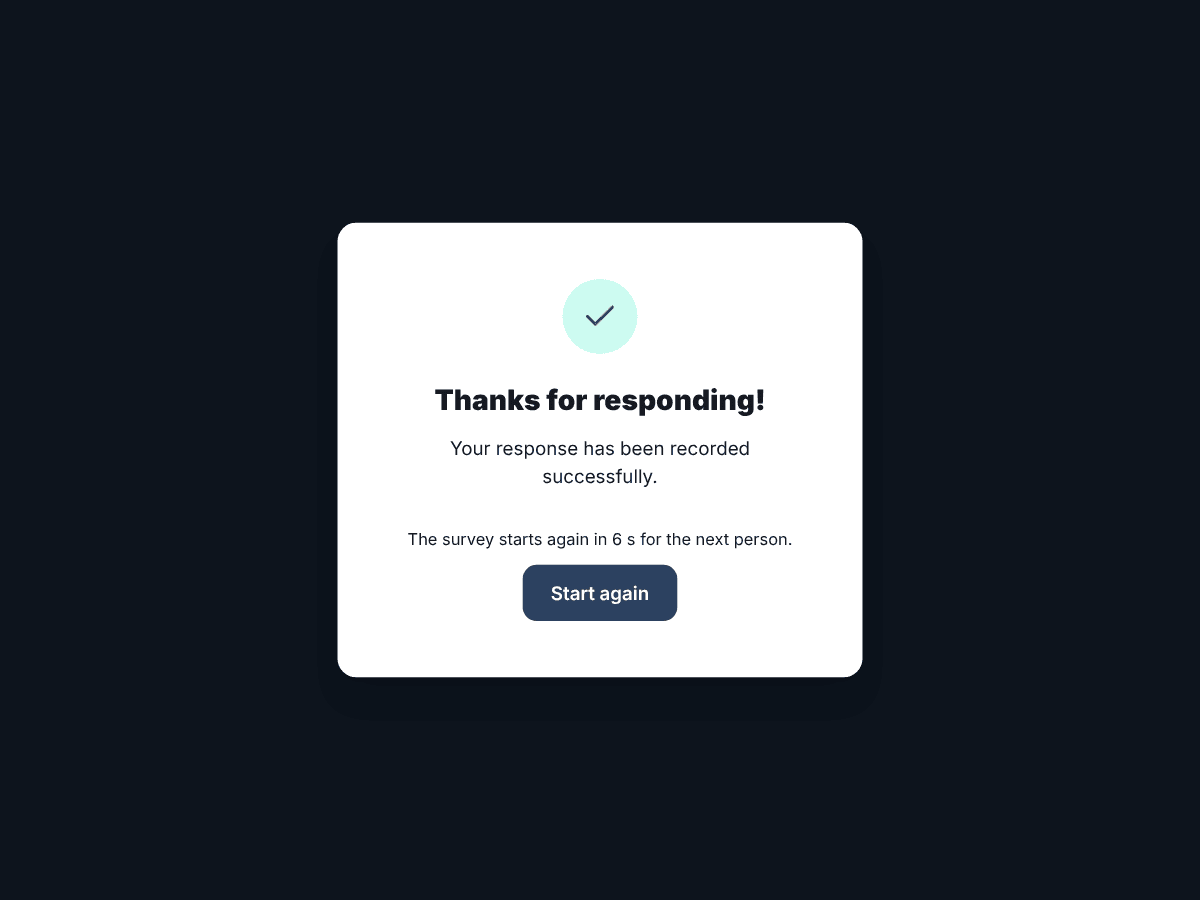
Sees the thank-you message with a countdown.
- 3
Back to start
Customer 2
The survey is blank again for the next person.
What kiosk mode does
- After sending, it shows the thank-you message for a few seconds (you choose how many) and goes back to the start on its own.
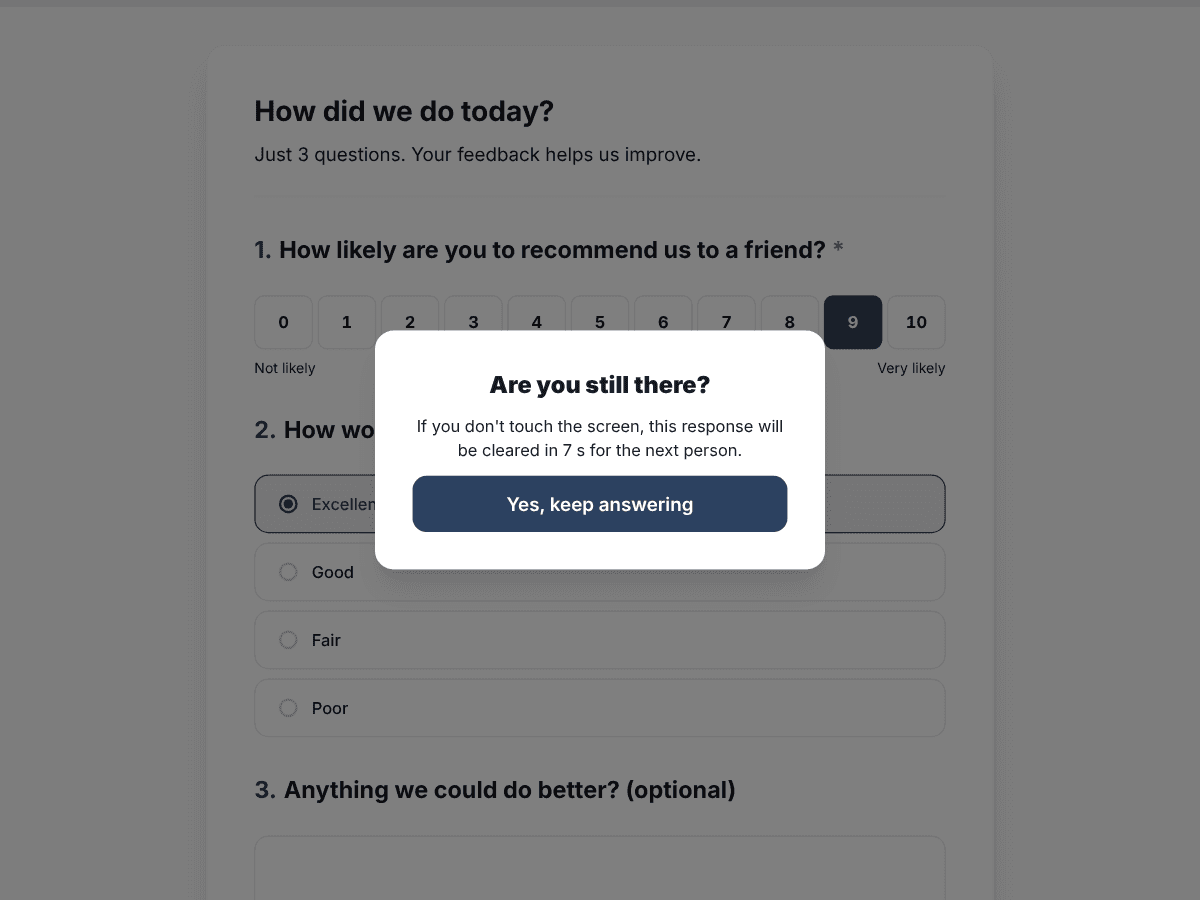
- If someone leaves halfway, after a while without touching it asks "Are you still there?". If nobody answers, it clears that response and starts over.
- It keeps nothing from the previous person on the tablet.
- It removes links that lead out of the survey.
- It accepts many responses in a row from the same connection. A regular link limits submissions from one place to stop fake responses, and a tablet in a busy store would hit that limit.
How to turn it on
In SurvIQ, open the survey and go to Distribution. Under "Kiosk mode (tablet on site)", turn on the switch and choose two times:
- How many seconds the thank-you screen shows before restarting. Eight seconds is enough to read the message.
- How long an untouched, unfinished response waits before it is cleared. One minute works well at a register; give a longer survey more time.
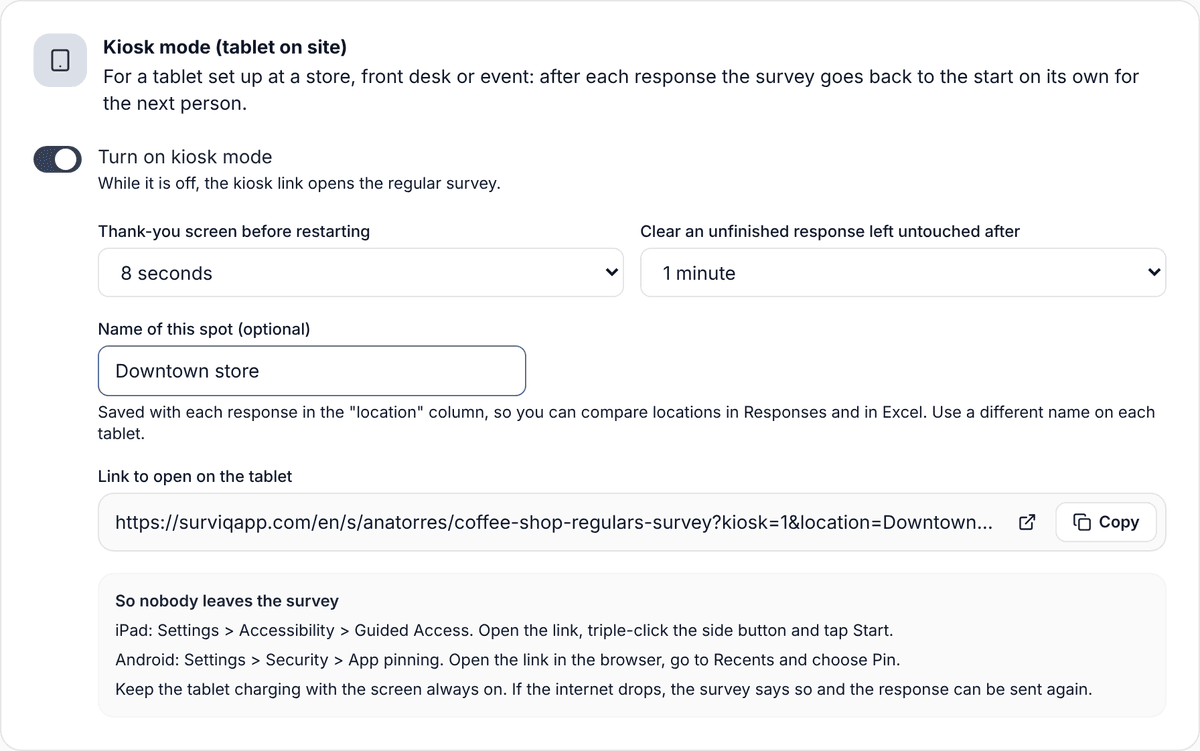
Then type the name of the spot, such as "Downtown store" or "Front desk". That name is saved with each response, in its own column in Responses and in Excel. If you have several tablets, use a link with a different name on each one: with the same survey you can compare locations without adding a "Which store are you in?" question.
Open the link on the tablet and leave it there. While kiosk mode is off, the same link opens the regular survey.
What the customer sees at the end
If someone starts and walks away, the tablet waits the time you chose and asks whether they are still there. They have 10 seconds to tap "Yes, keep answering"; otherwise the unfinished response is cleared and not saved.
So nobody leaves the survey
Kiosk mode removes the links, but the tablet is still a tablet: someone could close the browser. To prevent that, use the feature the system already has:
- iPad: Settings > Accessibility > Guided Access. Open the link, triple-click the side button and tap Start. Leaving requires a passcode.
- Android: Settings > Security > App pinning (it may be called "Screen pinning"). Open the link, go to Recents and choose Pin.
- Keep the tablet charging with the screen always on.
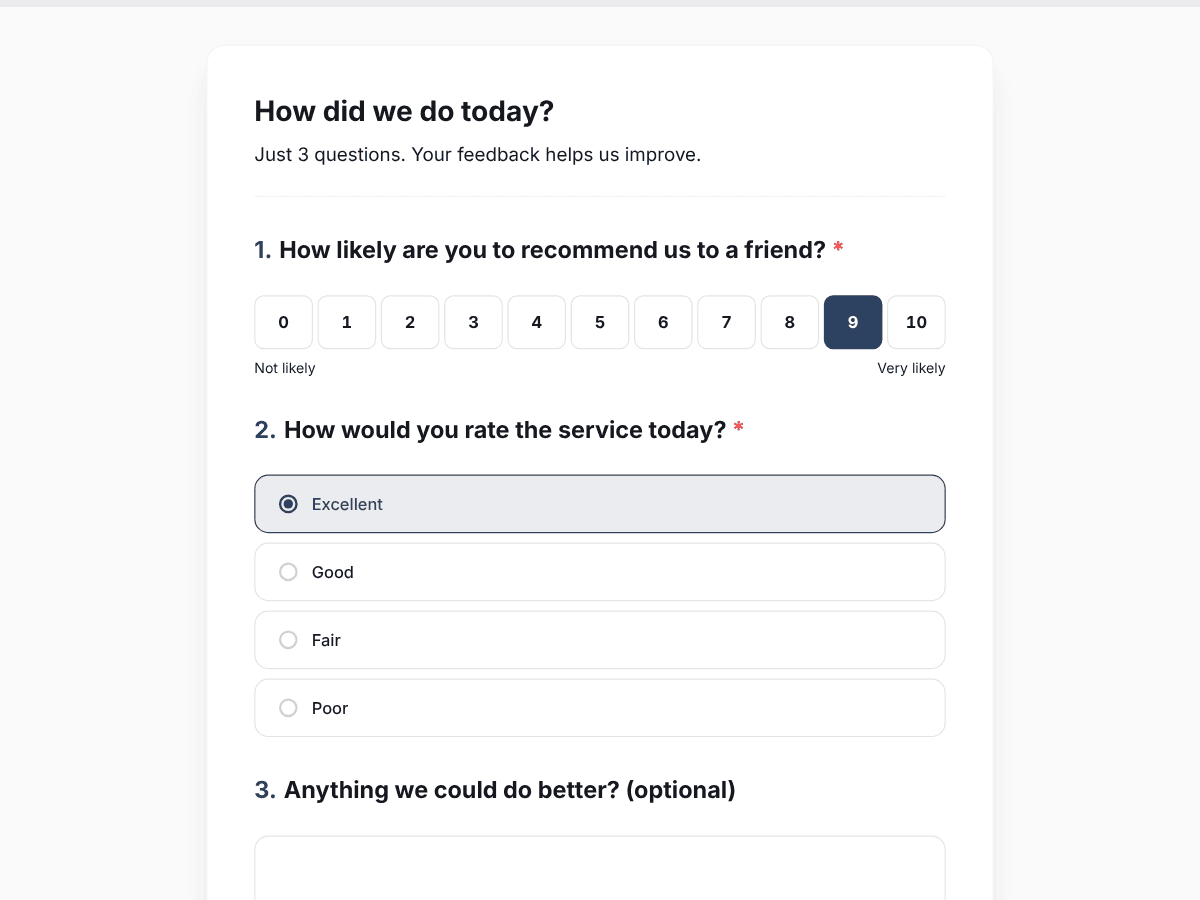
What to ask
On a tablet people answer standing up and in a hurry. Three to five questions is ideal: one about overall satisfaction or recommendation (NPS), one or two about what you want to improve and an optional open question. If you need more detail, send an email survey afterwards.