How to embed the survey on your website
Updated November 6, 2026
You can put your survey inside a page of your website, or have it appear in a small popup in a corner while people browse. Either way you copy a code from SurvIQ and paste it into your site. This guide explains which one to use, where to paste the code on the most common platforms and how to test it.
The two ways to embed
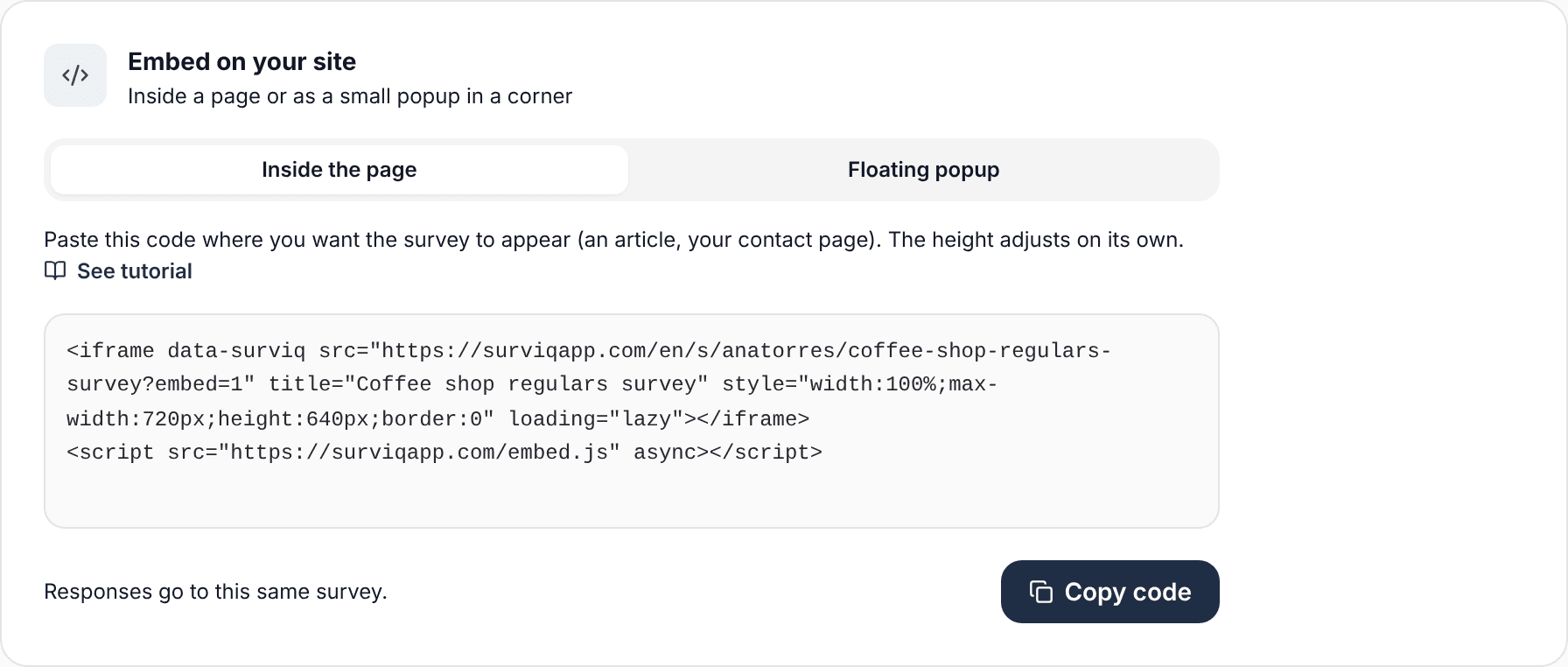
- Inside the page: the survey looks like part of the page, for example below an article, on your contact page or on your "thanks for your order" page. Its height adjusts to each page of the survey.
- Floating popup: the survey appears in a corner of the screen after a few seconds or when the person scrolls down. It is for asking visitors for feedback without taking up fixed space.
Responses go to the same survey as the normal link. In results you can filter by Channel > "Embedded on a website" to see only the ones that came from your site.
Where to find the code
- Publish the survey. The code only shows up once it is published.
- Open Distribution and scroll down to "Embed on your site". It is also in Share > Embed on your site.
- Pick the "Inside the page" or "Floating popup" tab.
- Tap Copy code.
The survey inside a page
The code has two parts: a frame (iframe) with your survey and a script line that adjusts the height. Paste all of it where you want the survey to appear.
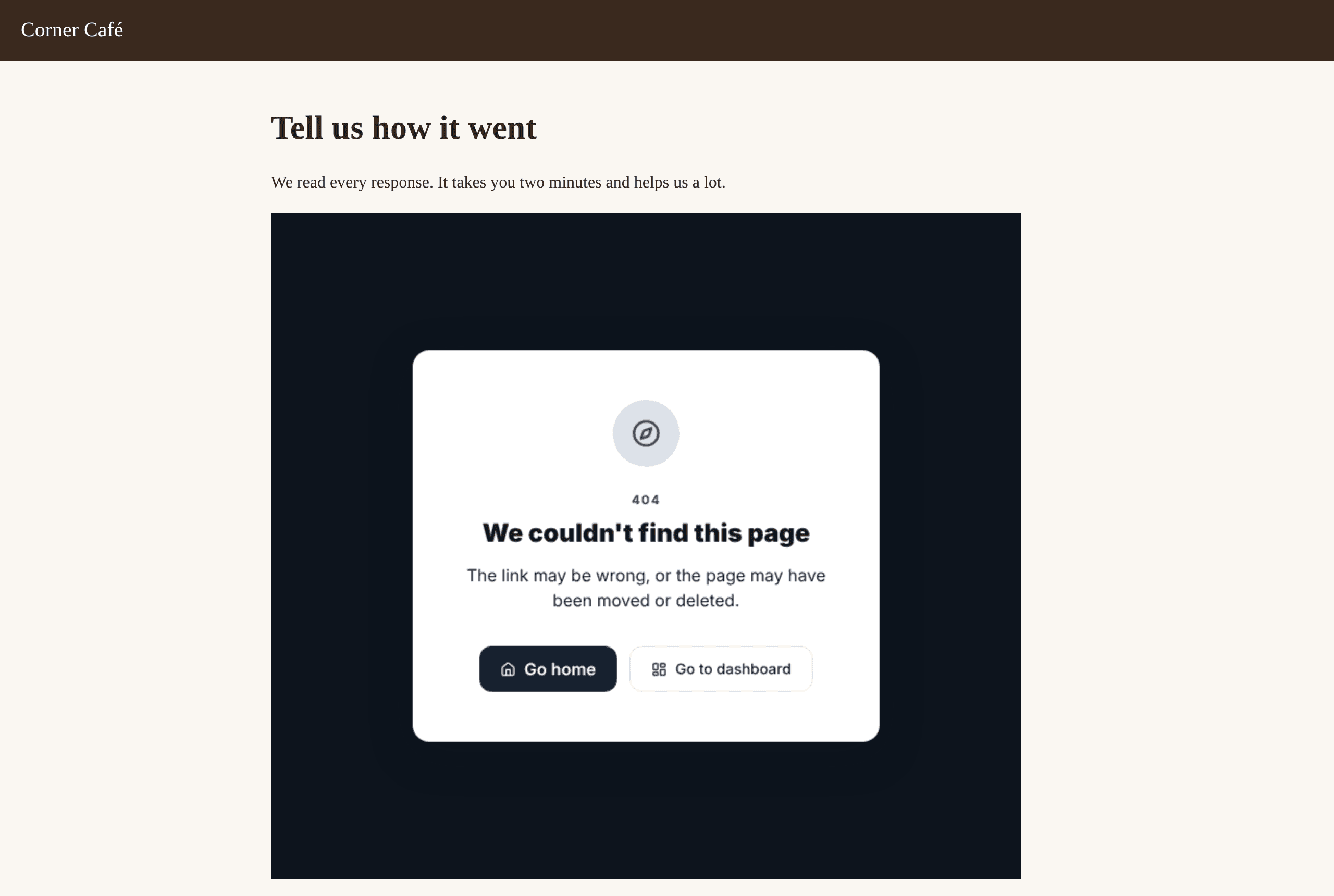
- The width adapts to the column you paste it into, up to 720 px. On phones it takes the full width.
- When the person moves to the next page of the survey, your site scrolls up to the start of the survey.
- If the survey redirects at the end, the redirect opens in the whole tab, not inside the frame.
- On the Free and Basic plans, a small "Survey made with SurvIQ" line goes under the survey.
The floating popup
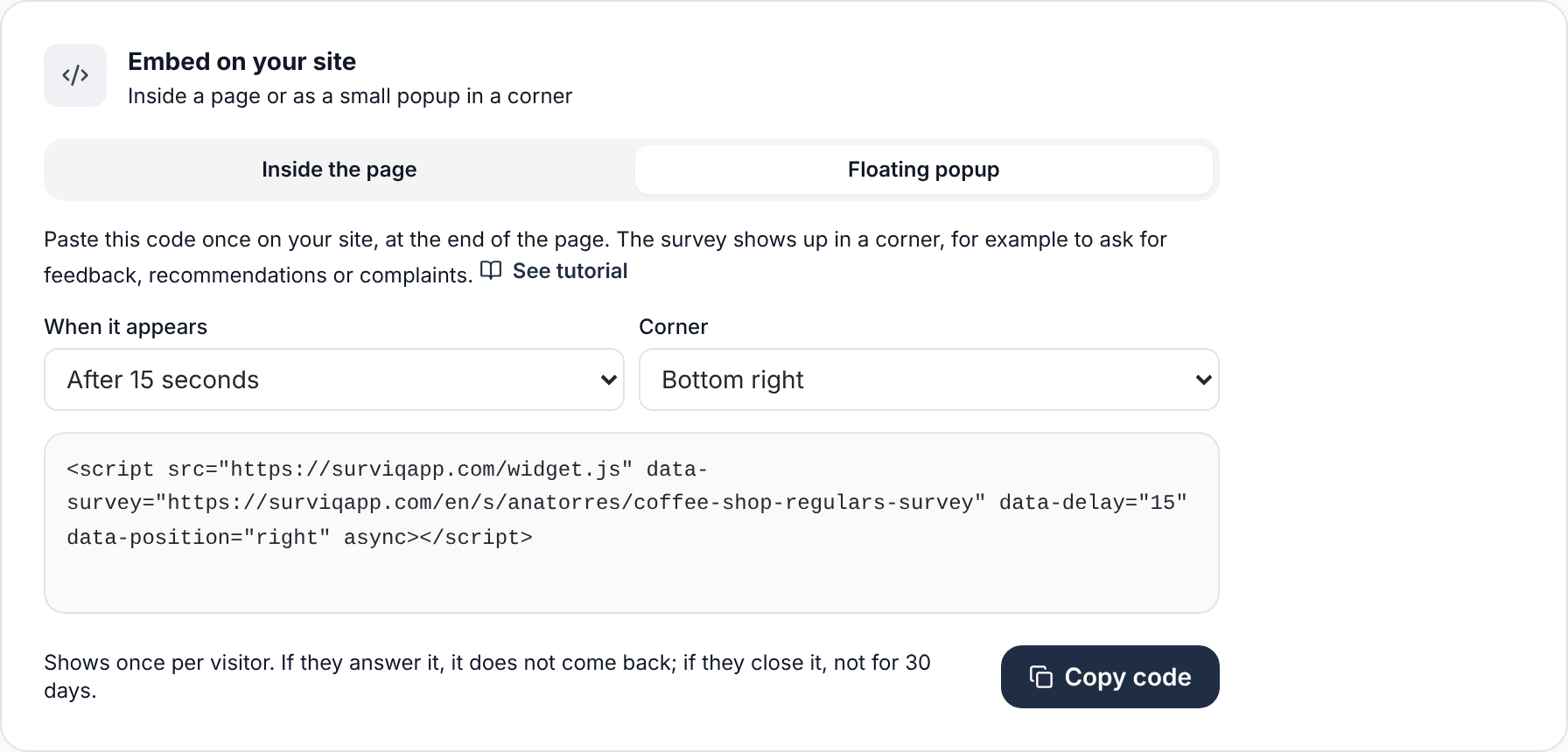
- In the "Floating popup" tab, choose when it appears: after 5, 15 or 30 seconds, or when the person scrolls halfway down the page.
- Choose the corner: bottom right or bottom left.
- Copy the code and paste it once into your site, at the end of the page, right before </body>. If you put it in your site template or footer, it appears on every page.
So it does not get in the way, each visitor sees it only once:
- If they respond, it never shows up for them again.
- If they close it, it does not show up for 30 days.
- On phones it spans the width of the screen, at the bottom.
To change the 30 days, add data-days to the code. For example, data-days="7" shows it again a week after someone closes it.
Where to paste the code on your platform
WordPress
- Inside a page: edit the page, add a "Custom HTML" block and paste the code.
- Popup: use a plugin that adds code to the footer of the whole site (for example WPCode) and paste the code there, or ask whoever manages your site.
Wix
- Inside a page: Add > Embed Code > Embed HTML, and paste the code. Wix shows it in a fixed-height box: stretch it until the whole survey is visible.
- Popup: Site settings > Custom Code, placed in "Body - end". Wix requires a Premium plan with a connected domain for this.
Shopify
- Inside a page: in the theme editor, add a "Custom Liquid" section and paste the code.
- Popup: Online Store > Themes > Edit code > theme.liquid, and paste the code right before </body>.
Google Sites
Insert > Embed > Embed code, and paste the "Inside the page" code. Google Sites also uses a fixed-height box: make it taller until the whole survey is visible. The floating popup does not work on Google Sites.
Any other website
Look for a block called "HTML", "Code", "Embed" or "Insert code" on your platform (Webflow, Squarespace, Framer and most others have one). If a developer built your site, send them the code and tell them whether it goes inside one page or on every page.
Know which page people responded from
You can add a hidden field to the link inside the code. For example, for the survey you paste on your pricing page:
<iframe data-surviq src="https://surviqapp.com/en/s/lima-restaurant/satisfaction?page=pricing&embed=1" ...
For the popup, add it to the data-survey link: data-survey="…/satisfaction?page=pricing". Then filter results by "Hidden field: page".
Test that it works
- Publish the changes to your site and open it in an incognito window.
- Respond to the survey once and check that the response reaches your results.
- If you tried the popup and closed it, it will not show up again in that browser. To see it again, open another incognito window.
If it does not show up
- Check that the survey is still published and that you pasted the whole code, including the <script> line.
- Some editors strip scripts. In that case the survey inside the page still shows, but with a fixed height of 640 px. The popup does need the script.
- If you change the survey link (its address), copy the code again.
Which plan you need
- The survey inside a page is on every plan.
- The floating popup is available from Basic.
- From Pro, the "Survey made with SurvIQ" line under the survey is not added.
Frequently asked questions
Does it slow down my site?
Barely. The survey loads when the person reaches it, and the script is small and loads without holding up the rest of the page.
Can I put several surveys on my site?
Yes, on different pages, each with its own code. For the popup, use one per page.
Does the survey use my website colors?
It uses the survey theme. Change it in the editor, under Theme, to match your site: the changes show up on your site without copying the code again.