Hidden fields: one link per location, channel or campaign
Updated November 6, 2026
A hidden field is a piece of data written into the survey link, for example the location or the channel the person came from. It is saved with their response without asking them anything. This guide explains how to build those links, where you see the data and how to use it to filter results, show different questions or share results by team.
What a hidden field is
It is what comes after the ? in a link. This link, for example, carries the field "store" with the value "downtown":
https://surviqapp.com/en/s/lima-restaurant/satisfaction?store=downtown
Whoever opens that link sees the normal survey: they do not see the field or type anything. When they submit, their response is saved with store = downtown. So with a single survey you know which responses come from each location, channel or campaign.
Some common uses:
- A different QR code at each location: ?store=downtown, ?store=airport.
- One link per channel: ?channel=instagram, ?channel=whatsapp, ?channel=email.
- Campaigns: ?utm_source=facebook&utm_campaign=holidays.
- Something you already know about the person, such as their customer number: ?customer=10482.
You do not have to set anything up first. Any field you put in the link is saved automatically.
How to build the link
- Copy the link of the published survey from Share or from Distribution.
- At the end, add ? followed by the field name, = and the value. For example ?store=downtown.
- To add another field, separate it with &. For example ?store=downtown&channel=qr.
- Open the link to test it and respond once.
https://surviqapp.com/en/s/lima-restaurant/satisfaction?store=downtown&channel=qr
That full link is what goes in the QR code, the button on your website, the email or the post. Each location or channel gets its own link.
Rules for names and values
- The field name can use letters without accents, numbers, hyphen (-), underscore (_) and period, up to 50 characters. No spaces.
- In the value, avoid spaces and accents: write west-side instead of "West Side". If you need a space, write %20.
- Up to 20 fields per link. Each value can be up to 500 characters.
- Always write each value the same way. In results, "Downtown" and "downtown" show up as two different values.
- Four names are already used by SurvIQ and are not saved as fields: c, lang, embed and kiosk.
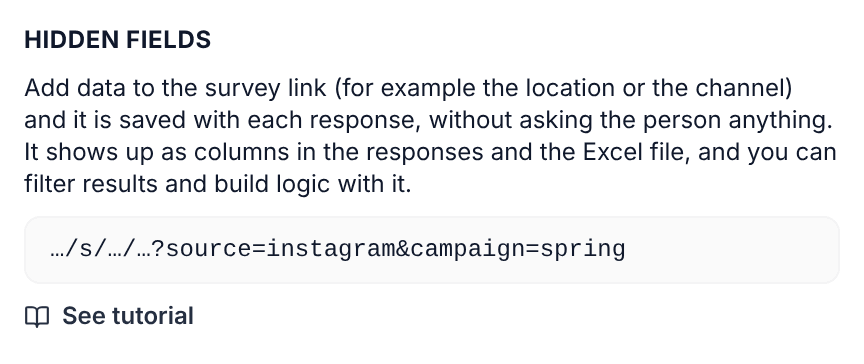
For tablets at a location you do not need to build links: Kiosk mode in Distribution has "Name of this spot", which saves a hidden field called "punto" with each response.
Where you see the data
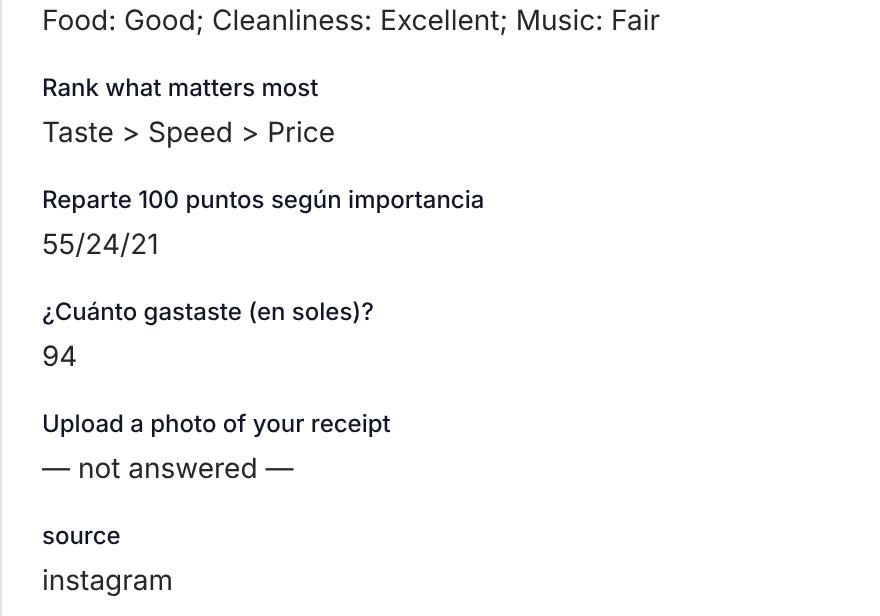
- In Responses, at the end of each response, with the field name and its value.
- In downloads (Excel, CSV, SPSS and R) and in the data table of Advanced mode, as one more column.
- In webhooks and in Live responses in Google Sheets or Excel, next to each response.
Filter results by a hidden field
- Open the survey results and tap Filter.
- At the end of the list is "Hidden field: store" (with your field name), with each value and how many responses it has.
- Check one or more values and tap Apply. Every chart shows only those responses.
- If you will use it often, tap "Save as segment" and give it a name, for example "Downtown only".
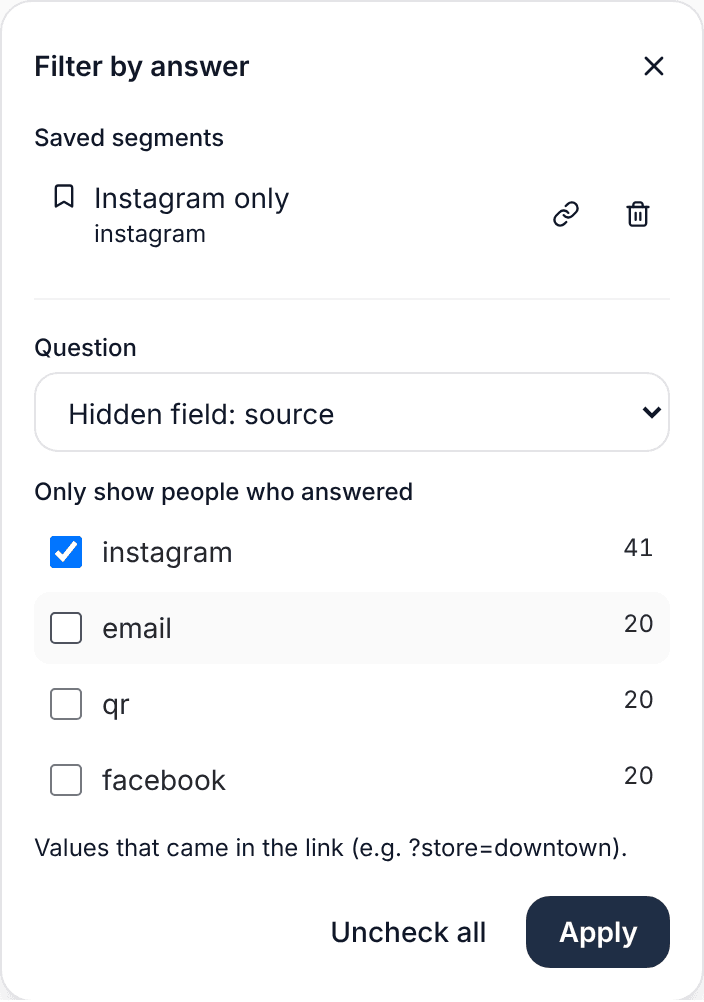
A field shows up in Filter only once at least one response has it. If you do not see it yet, open the link with the field and send a test response.
Filter also has "Channel", which SurvIQ saves on its own: link, contact list, kiosk or embedded on a website. You do not need a hidden field for that.
Use a hidden field in logic
You can show or hide questions, jump or end the survey based on the field value. For example, ask about delivery only to people who came through ?channel=app, or show a different ending to people who came from the QR code.
- In the editor, open the question and go to Logic.
- Tap Add rule and choose what it does: show, hide, jump or end.
- In the condition, open the question menu and choose "Hidden field in the link", in the Other data group.
- Type the field name (for example channel), choose "equals" and type the value (for example qr).
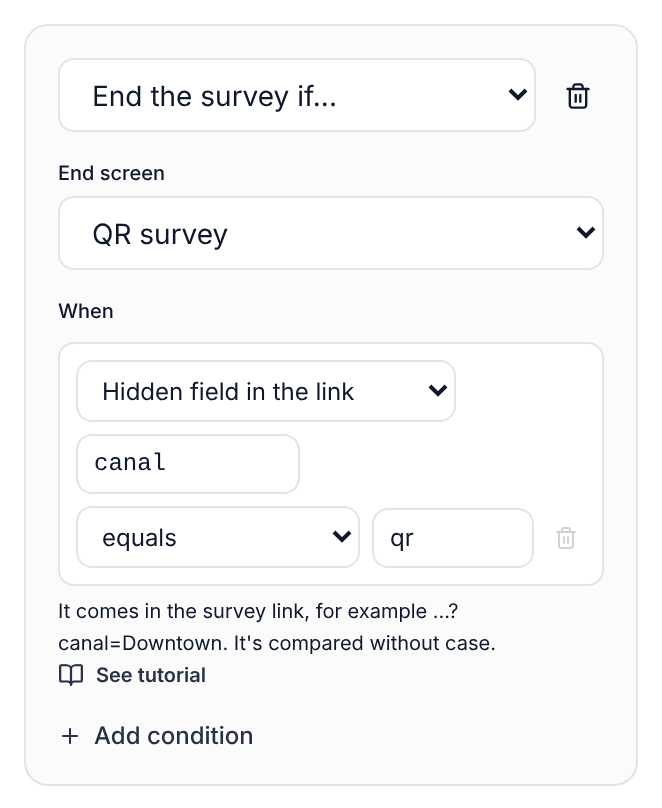
In logic, upper and lower case do not matter: QR and qr count the same. If someone opens the link without the field, an "equals" condition is not met.
Share results by location or team
If each location has its own link with ?store=..., you can invite each store manager to see only their responses: in Share > People choose "Only their team" and pick "Hidden field: store" as the team field. You can also put the manager's email in the link (?manager=ana@company.com) so each one sees only what came through their link.
Step by step, with every option:
See the share results guideIn a survey embedded on your website
If you embedded the survey on your website, add the field inside the link in the code. For example, to know which page of your site people responded on:
<iframe data-surviq src="https://surviqapp.com/en/s/lima-restaurant/satisfaction?page=pricing&embed=1" ...
Which plan you need
- Hidden fields are saved on every plan and show up in Responses and downloads.
- Filtering by a hidden field and using it in logic is available from Basic.
- Sharing results by team using a hidden field is available from Pro.
Frequently asked questions
Can the person see or change the field?
Only if they look at the address bar, and they could change it by hand. Use it to know where each response comes from, not for data nobody should touch. To know for sure who responded, use a contact list with unique links.
Can I put the person's name or email in it?
You can, but the link stays in the browser history and can be forwarded. If it is personal data, use a customer number or a contact list instead.
What if someone opens the link without the field?
They can still respond. Their response has no value for that field and does not show up when you filter by one of its values.