How to group the options of a question
Updated November 18, 2026
When a question has many options with few responses (small offices, job titles, locations), charts by group become unreadable and a group of 2 people is no longer anonymous. Grouping options creates a version of the question with the groups you choose, without touching the responses.
What it is for
- Combine offices or departments with fewer than 5 responses into "Other" or "Other offices".
- Merge options that are really the same (for example two names for the same division).
- Build bigger groups: Headquarters and Regions, Operations and Admin.
The grouped question shows up as one more question in Results: it works in filters, Compare by, Charts by segment, the Factor table and the Excel and SPSS exports.
Step by step
- Open the survey results (Simple view) and tap Variables.
- Choose Group options.
- Give it a name, for example Office (grouped), and pick the question.
- On each option you want to combine, type the group name. Options left empty stay as they are.
- Tap Save.
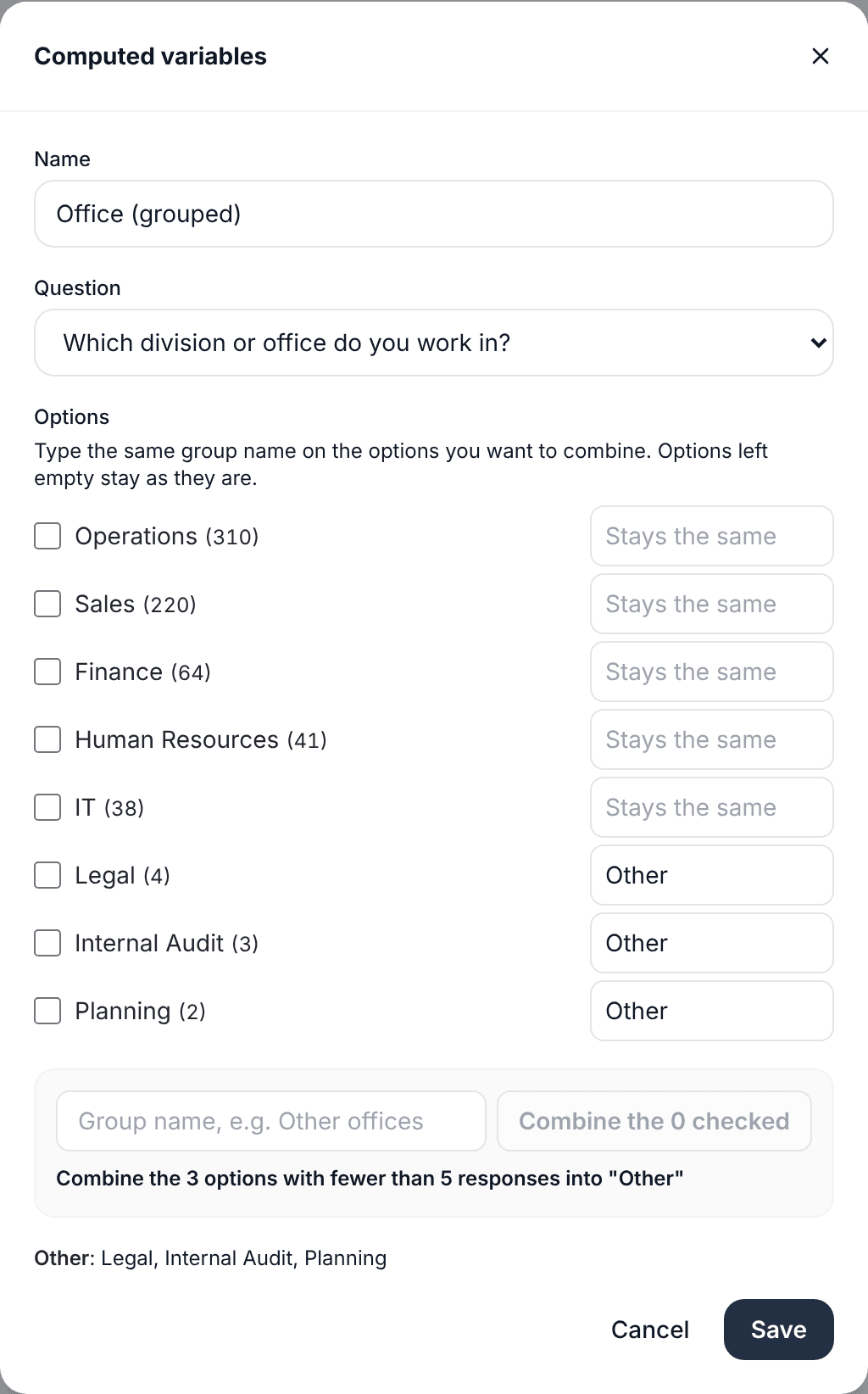
The button "Combine the options with fewer than 5 responses into Other" does it in one tap. You can also check several options, type the group name and tap Combine the checked.
Small groups in charts by segment
Even if you don't create a grouped question, Charts by segment combines groups with fewer than 5 responses into "Other" by default. You can change it in step 3: hide them or show them anyway.
Frequently asked questions
Do the responses change?
No. The original question stays the same. The grouped one is calculated when you look at the results, and you can edit or delete it at any time.
Which plan includes it?
Computed variables are available from the Basic plan.
To get every chart by office at once:
Charts by segment