How to import responses from SurveyMonkey, Google Forms or Excel
Updated November 18, 2026
If you already collected responses on another platform, you don't need to survey people again. Upload the exported file and SurvIQ creates the survey with its questions and loads every response, ready to filter, compare by department, build factors and export.
Which files work
- SurveyMonkey: in Analyze results, Save as > Export file > All individual responses, as Excel or CSV. Choose the actual answer text, not the numeric columns.
- Google Forms: in the Responses tab, Download responses (.csv). The linked spreadsheet, downloaded as Excel, also works.
- Microsoft Forms, Typeform, Jotform or any spreadsheet: one header row with the questions and one row per person.
- Format: Excel (.xlsx) or CSV, up to 15 MB. If you have an old .xls file, open it and save it as .xlsx.
SurveyMonkey exports with two header rows (the question on top and the option below). SurvIQ recognizes them on its own: multiple-choice questions and matrices come in as a single question.
Step 1: upload the file
- In Surveys, tap New survey.
- Choose Import responses from SurveyMonkey, Google Forms or Excel.
- Drag the file in or tap to pick it. If the workbook has several sheets, you can choose which one to use.
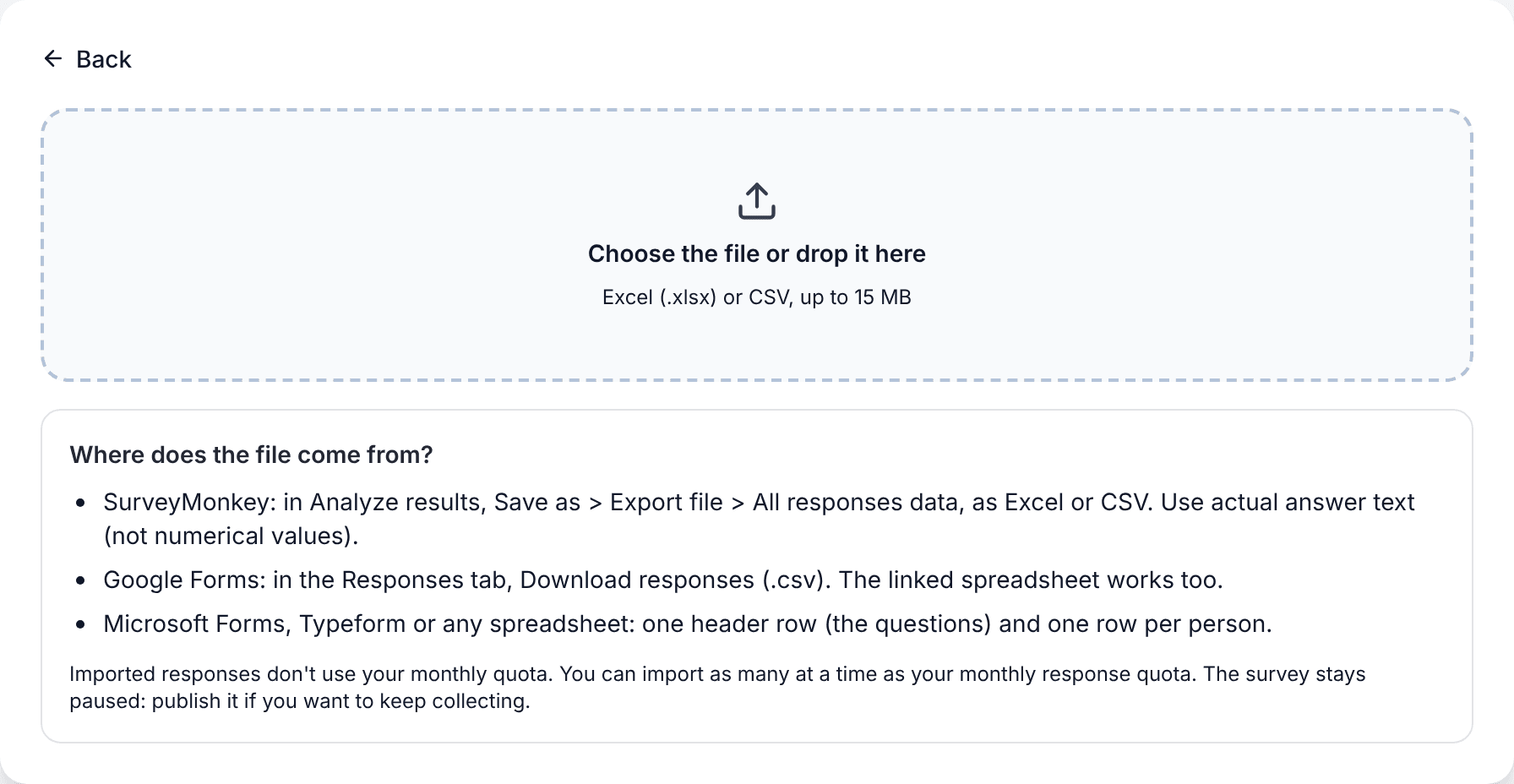
The file is read in your browser. Only the questions and answers reach the server, in batches.
Step 2: review the questions
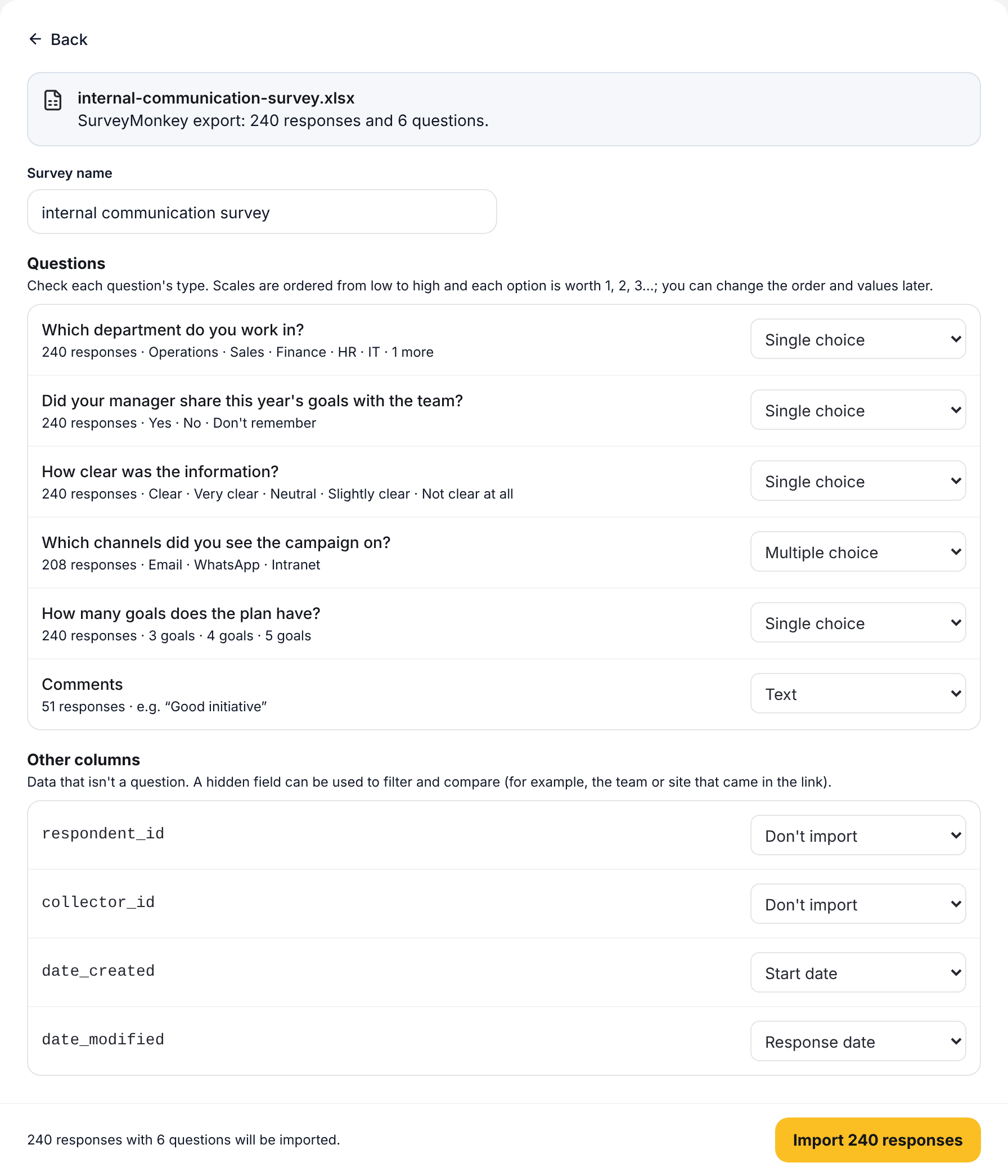
SurvIQ suggests a type for each column and shows an example answer. Check these three things:
- Type: single choice, multiple choice, number, NPS (0 to 10), text or Skip.
- Scales: the ones it recognizes (Agree, Satisfied, Excellent…) are ordered from low to high and each option is worth 1, 2, 3… so averages and factors work right away.
- Other columns: dates and data that aren't questions. A hidden field (for example, the office that came in the link) can be used to filter and compare. Empty columns, like the IP or email SurveyMonkey includes even when you didn't ask for them, are left out.
Step 3: import and analyze
- Name the survey and tap Import.
- Keep the window open until it finishes. About a thousand responses take a few seconds.
- Tap View results.
The survey is paused: it won't take new responses unless you publish it. From there it works like any SurvIQ survey: filters, compare by department, value per option, factors, charts by segment, analysis Excel and SPSS.
How many responses you can import
Imported responses don't use your monthly quota. Each import can bring in as many responses as your monthly response quota: if your plan takes 1,000 a month, you import up to 1,000 at a time. If the file has more, the first ones are imported and we tell you before you start.
Frequently asked questions
Are the dates kept?
Yes. If the file has the response date, it is saved with each response and works with the date filter and the trend view.
Can I change the order or value of the options later?
Yes. In the editor you can reorder the options and change what each one is worth with Value per option. An option without a value, like "Don't know", is left out of the average.
What about text answers?
They come in as they are. Then you can classify them into themes with AI or look at the most repeated words.
Can I mark correct answers on an imported test?
Yes. Review the questions in the editor and mark the correct option. See the knowledge questions guide.
To measure the % correct by department:
Knowledge questions