Calibration and 9-box
Updated November 11, 2026
Calibration makes sure every manager uses the same ruler before results are delivered. In the calibration table you compare how categories turned out against a reference curve, see each person on the 9-box and adjust where needed, always with a reason.
Set it up
- In Setup, turn on the Calibration stage. It goes after the manager review and before feedback.
- If you want a reference, turn on "Use a suggested curve" and set what % of people you expect in each category. It is only a guide: it forces nothing.
- For the 9-box, turn on "Manager rates potential" in the manager review.
- If a committee calibrates, give them committee access: they see results and calibrate, without touching setup.
Use the table
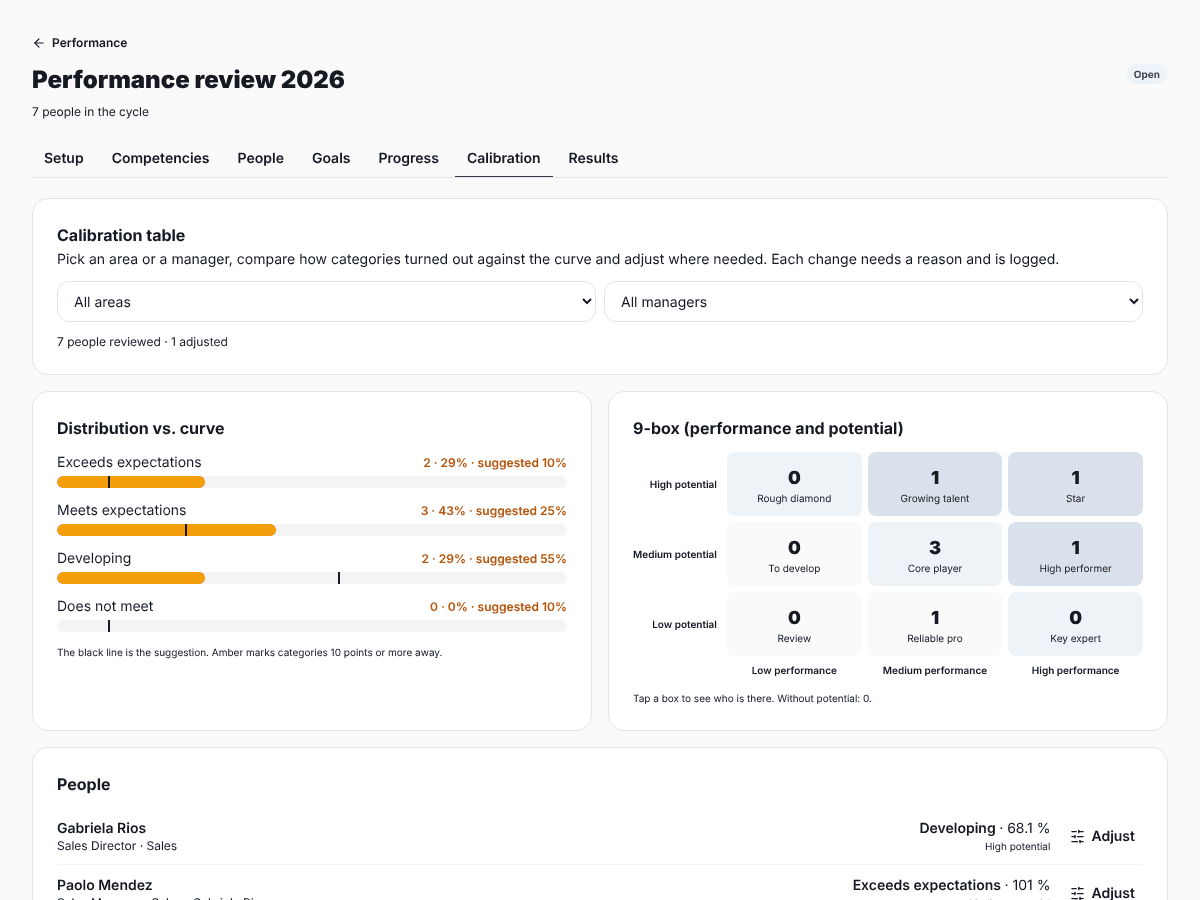
- In Progress, open the Calibration stage and tap "Open the calibration table" (or go to the Calibration tab).
- Pick an area or a manager to review one group at a time.
- Look at the distribution: the black line is the suggestion and categories 10 points or more away are marked in amber.
- On the 9-box, tap a box to see who is in it.
- To adjust someone, tap Adjust: change the category, score (optional) or potential, and write the reason.
"Back to the manager’s" undoes an adjustment. Every change is logged with who made it, when, before, after and the reason.
What the person sees
Their result uses the calibrated category, with the note "Adjusted in calibration". In results and the Excel file, HR sees what the manager had given and the reason for the change.
You do not need to review everyone. Focus on the extremes, people on the line between two categories and managers with their whole team at the top or bottom.