Results, Excel, comparing cycles and access
Updated November 11, 2026
In the Results tab you see how the company, each area, each manager and each person did. From there you download an Excel file with everything and compare with an earlier cycle. This guide also explains how to give access to other HR people or a committee.
What the Results tab shows
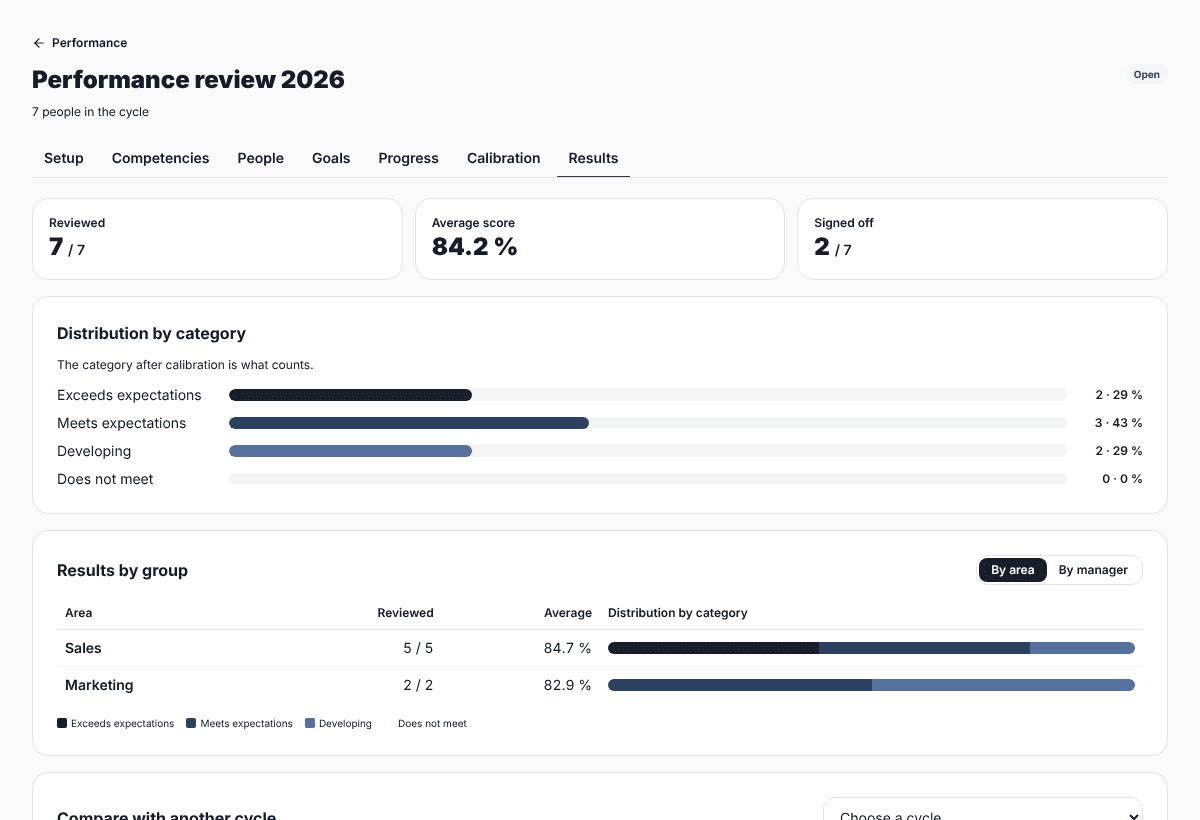
- Reviewed, average score and how many signed off.
- Distribution by category, after calibration if there was one.
- Results by area and by manager: people, reviewed and average for each group.
- The list of people with their score, category and reviewer. One tap opens each person’s sheet: goals, competencies, comments, peer feedback, development plan and signature.
The Excel file
The Excel button downloads a file with a sheet per topic: results, by area, by manager, goals, development plan and calibration. Use it to present to leadership or combine with other HR data.
Compare with another cycle
In "Compare with another cycle" pick an earlier review and see how the same people changed: the average score of both cycles, who moved up or down a category and how many stayed the same.
HR and committee access
You can invite other people to help. They sign in with their own SurvIQ account, which is free, and see your reviews.
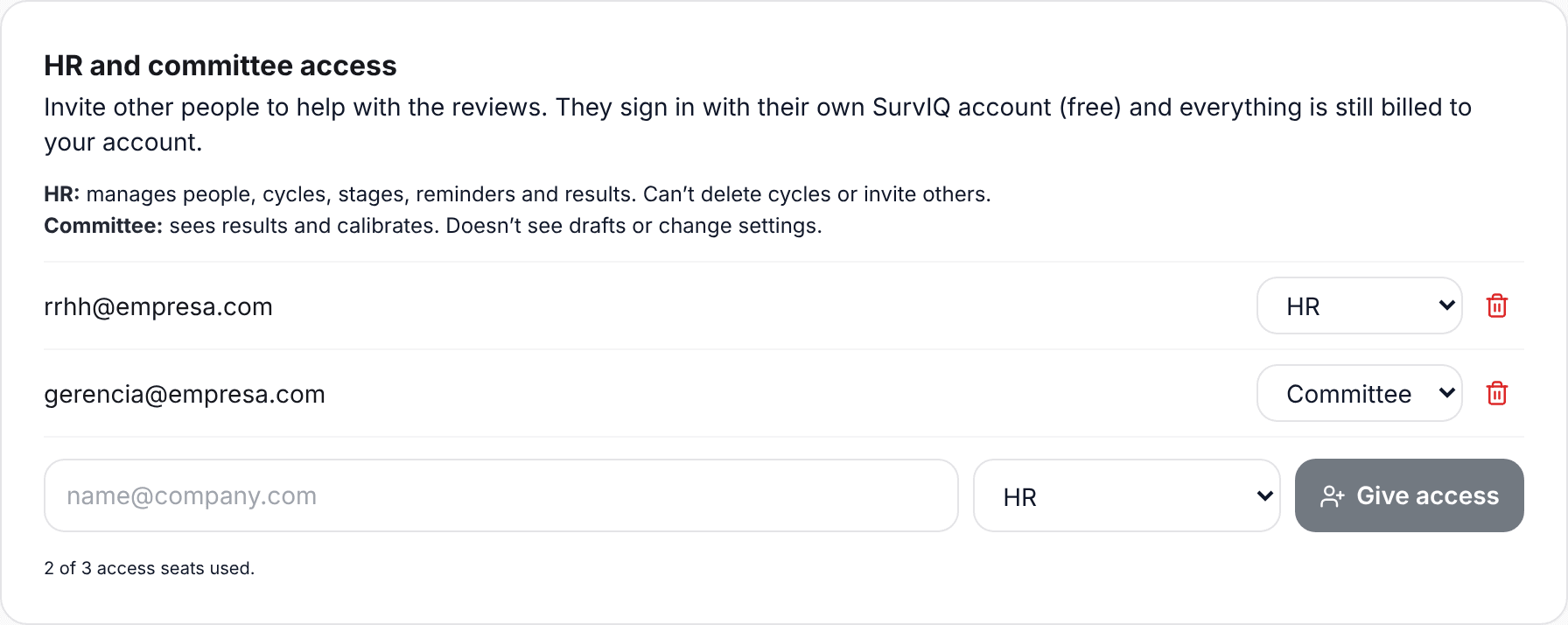
- HR: manages people, cycles, stages, notices and results. Cannot delete cycles or invite others.
- Committee: sees results and calibrates. Does not see drafts or change setup.
To invite someone, type their email, pick the role and tap Give access. They then sign in to SurvIQ with that email and see your reviews. You can remove access any time.