Goals: rules, approval, Excel and cascading
Updated November 11, 2026
Goals are what each person has to achieve in the period. In SurvIQ each goal is measured in its own unit (sales, days, %) and achievement is calculated automatically. This guide explains how to set the rules, who writes goals, how they are approved and the options for companies with area or cascading goals.
Goal rules
Set them in Setup, inside the Goal setting stage:
- Who writes the goals?: each person, their manager, or HR from an Excel file.
- Minimum and maximum goals per person, or no limit.
- Minimum and maximum weight per goal. Each person’s weights always add up to 100%.
- The manager approves goals: they can approve them or send them back with a comment.
- Ask for a deadline on each goal.
The three goal types
- Higher is better (sales, customers): achievement = actual ÷ target.
- Lower is better (days, complaints, cost): achievement = target ÷ actual.
- Yes or no (launch a project): 100% if met, 0% if not.
The cap per goal (in Final score) limits how much an exceeded goal counts. With 120, someone who reached 150% counts as 120%.
How each person writes them
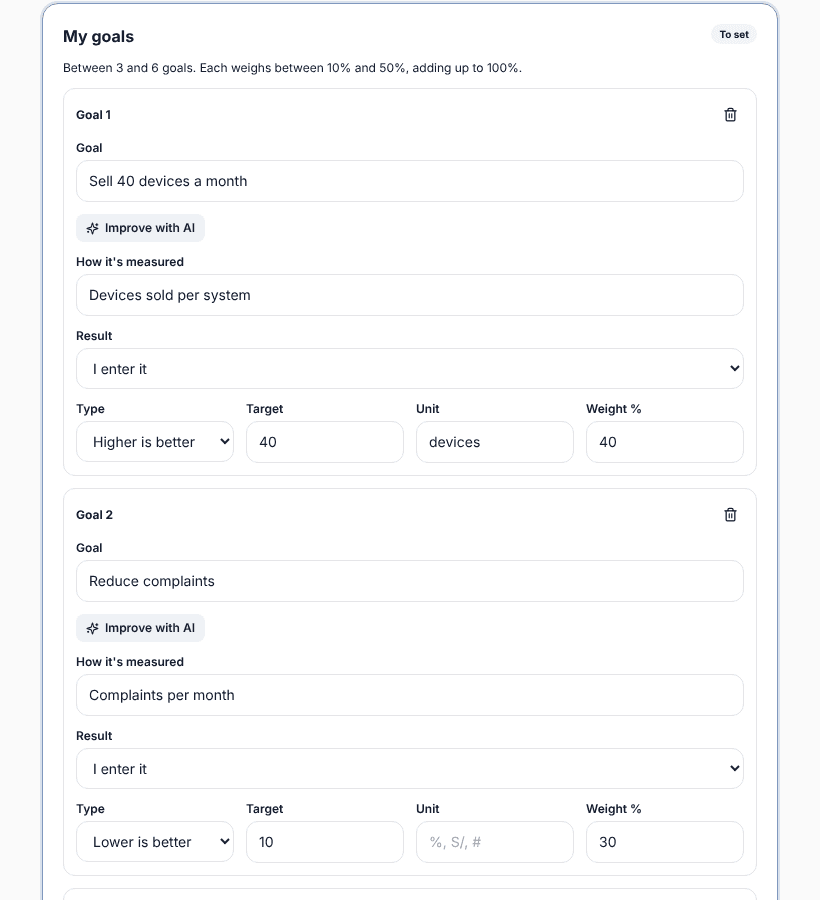
- The person signs in to the portal and opens My goals.
- They add each goal. "Improve with AI" turns a goal written by hand into a measurable one (if AI help is on).
- They tap "Send to" their manager. If the rules are not met, SurvIQ says what is missing.
- The manager sees them in My team > Approve goals, and approves them or sends them back with a comment.
Upload all goals from Excel
If HR already has goals in a spreadsheet, in the cycle’s People tab use "Upload goals from Excel". One row per goal with the person’s ID, goal, indicator, type, target, unit, weight and date. Uploaded goals replace the person’s goals and are approved.
Area goals
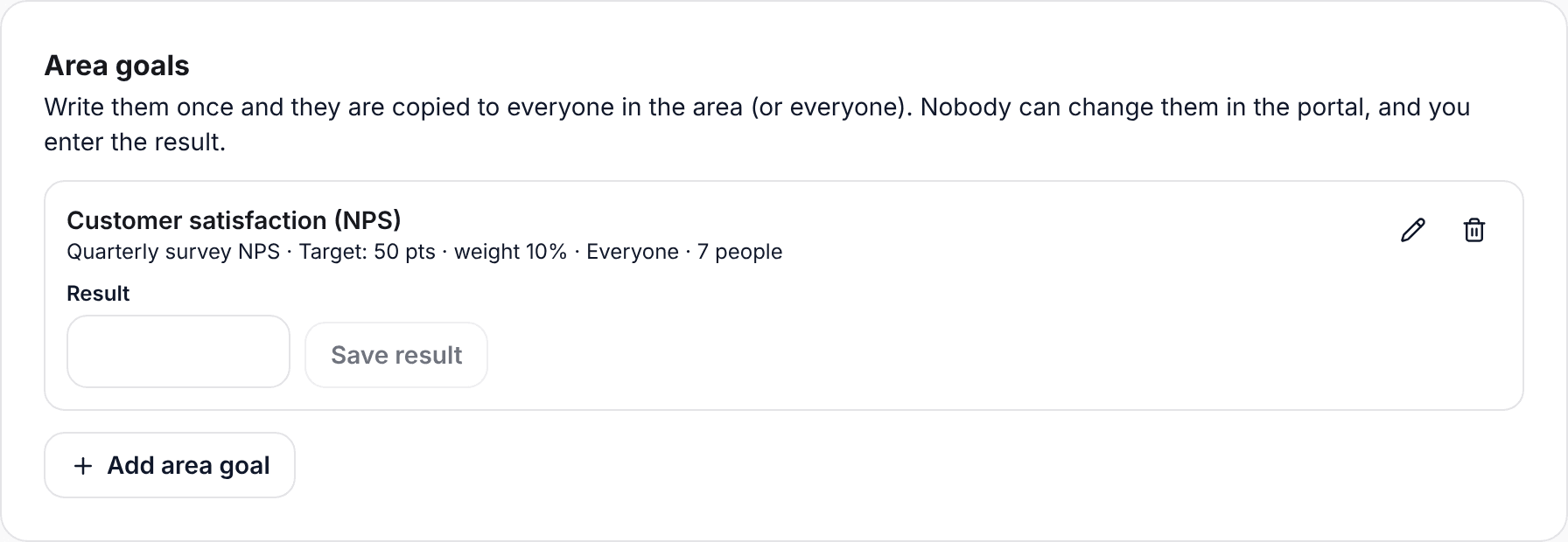
In the Goals tab you can write a goal once and copy it to everyone in an area (or everyone). Nobody can change it in the portal. At the end of the period HR enters the result once and it counts for everyone.
Cascading goals and goals that add up the team’s
- Cascading goals: each goal can hang from one of their manager’s goals. In Goals > Show tree you see how they line up.
- Goals that add up the team’s: a manager can have a goal whose result is the sum or average of the team goals hanging from it.
- Team share in a manager’s score (in Final score): with 20, 20% of a manager’s score comes from their direct team’s average.
Changing goals at mid-year
If you use the mid-year check-in, choose what happens if someone needs to change a goal: it changes with manager approval, only HR changes it, or it does not change.